Data Flows
A data flow is a group of pipelines with their triggers. Its pipelines run on adapters; the triggers start them on a schedule. Open the list with Integration > Data Flows.
The list
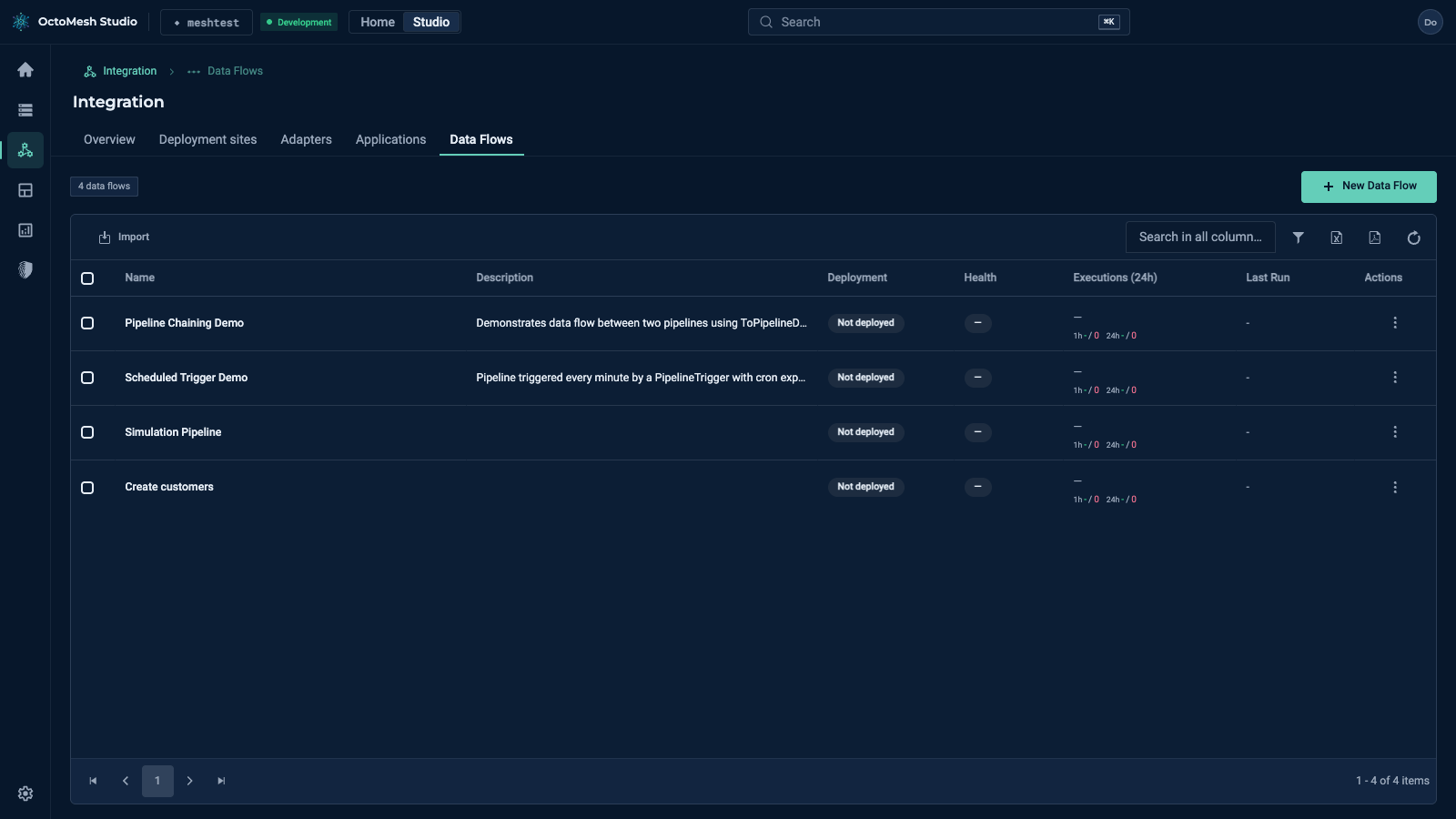
The header shows the number of data flows (for example "4 data flows"). The columns are Name, Description, Deployment, Health, Executions (24h), Last Run and Actions. The toolbar has New Data Flow and Import, plus the usual Show Row Filter, Export to Excel, Export to PDF and Refresh Data.
The Actions menu of a row offers Open, Open editor, Deploy, Undeploy, Execute, Execution history, Show events, Duplicate, Merge into…, Export, Copy ID and Delete.
New Data Flow opens a form with Name (required) and Description; confirm with Create, then build the flow in the editor.
The details page
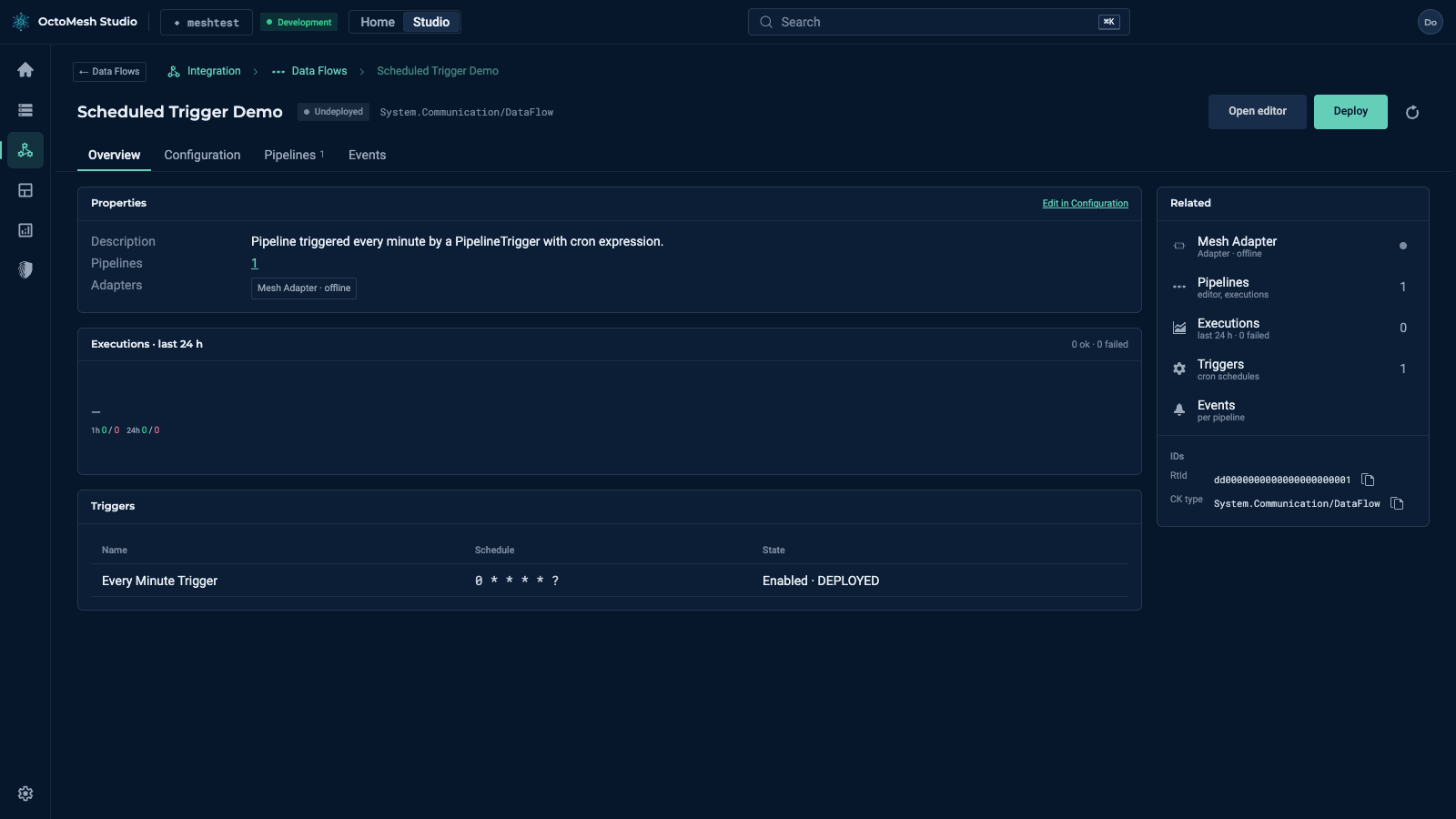
Open (or a click on the name) shows the data flow with the buttons Open editor and Deploy and a refresh button. The state next to the name is Undeployed or the deployment state.
| Tab | Content |
|---|---|
| Overview | Description, the number of pipelines, the adapters that run them, executions of the last hour and 24 hours, and the table Triggers with Name, Schedule and State (for example Enabled · DEPLOYED). The table is read only. |
| Configuration | Name and description of the data flow. |
| Pipelines | The pipelines with adapter, state, executions of the last 24 hours and last run; Open data flow editor, and Edit and History per pipeline. |
| Events | The notification events per pipeline. |
The panel Related links to the adapter, the pipelines, the executions, the triggers and the events.
The editor
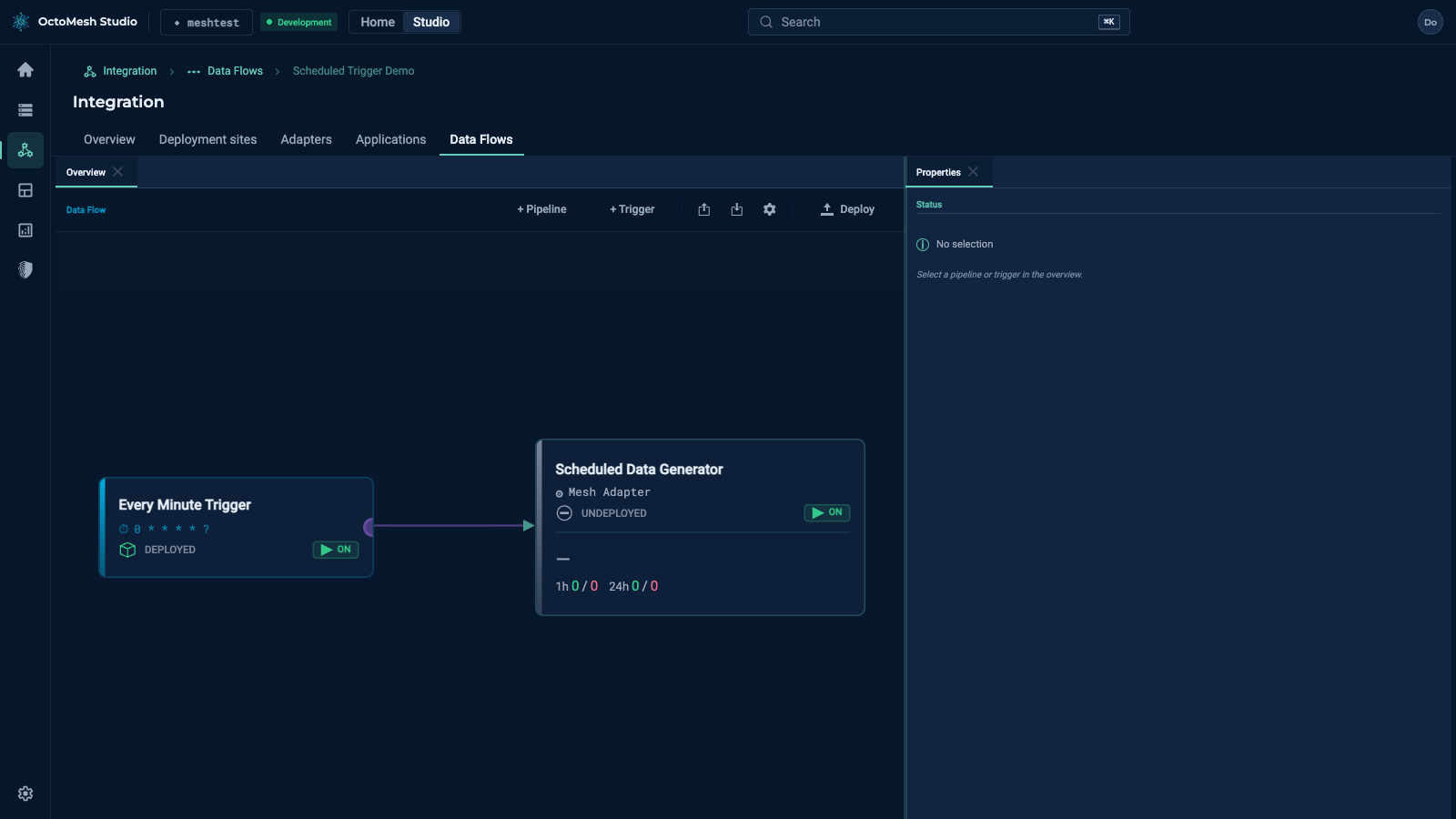
Open editor (also from the row menu) opens the editor in the full width of the page (address .../data-flows/editor/<id>). The tab Overview shows the data flow as a graph: a trigger card (name, schedule, DEPLOYED or UNDEPLOYED, an on/off switch) connected to the pipeline card it starts (name, adapter, state, switch, executions of the last hour and 24 hours).
The toolbar has + Pipeline, + Trigger, buttons for Export Data Flow and Import, a settings button and Deploy. A click on a card shows its properties in the panel Properties on the right.
Triggers
Triggers are managed in the editor, not on the details page. + Trigger adds a trigger to the data flow. A click on a trigger card opens Trigger Properties:
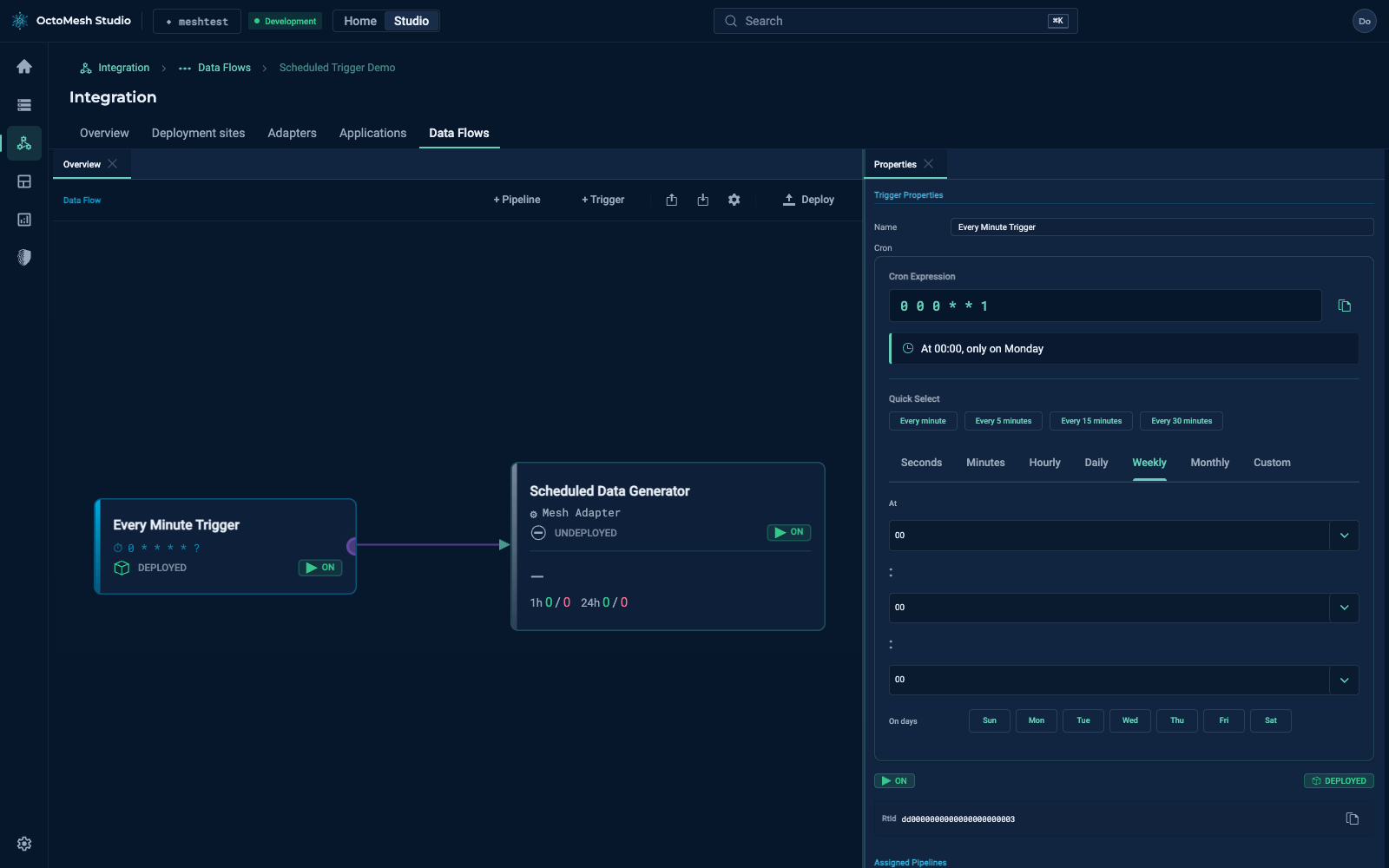
- Name of the trigger.
- Cron: the cron expression, with a plain-language reading ("At 00:00, only on Monday"), the quick buttons Every minute, Every 5 minutes, Every 15 minutes and Every 30 minutes, and the tabs Seconds, Minutes, Hourly, Daily, Weekly, Monthly and Custom to build the schedule.
- The on/off switch (ON), the deployment state (DEPLOYED), the RtId and the Assigned Pipelines.
For the background — how the Bot Service runs the schedules and which node starts the pipeline — see Pipeline triggers in the Technology Guide.
More
Data Flows in the Technology Guide explains pipelines and adapters; the node reference describes every node.