Home
Home is the area you land in after sign-in. It is the only area in the Home mode of the Studio (see the Studio overview); in the Studio mode it is the first area of the rail. Its tab strip holds, in this order:
- Cockpit
- Pinned MeshBoards (one tab per pinned board)
- Reports
- Files
- AI console
- Applications of the tenant, after a separator
Cockpit
The Cockpit is the MeshBoard that shows the status of the tenant at a glance. It greets you (Good morning, <your name>), names the tenant and shows widgets such as:
- Construction Kit Models: how many models are available (for example 20 / 20).
- Needs attention: findings with a link to the place that solves them, for example an unregistered deployment site with Open deployment site.
- Adapters online and Pipeline executions 24 h.
- Recently opened: the pages, entities and boards you opened lately; Cmd/Ctrl+K shows the same list.
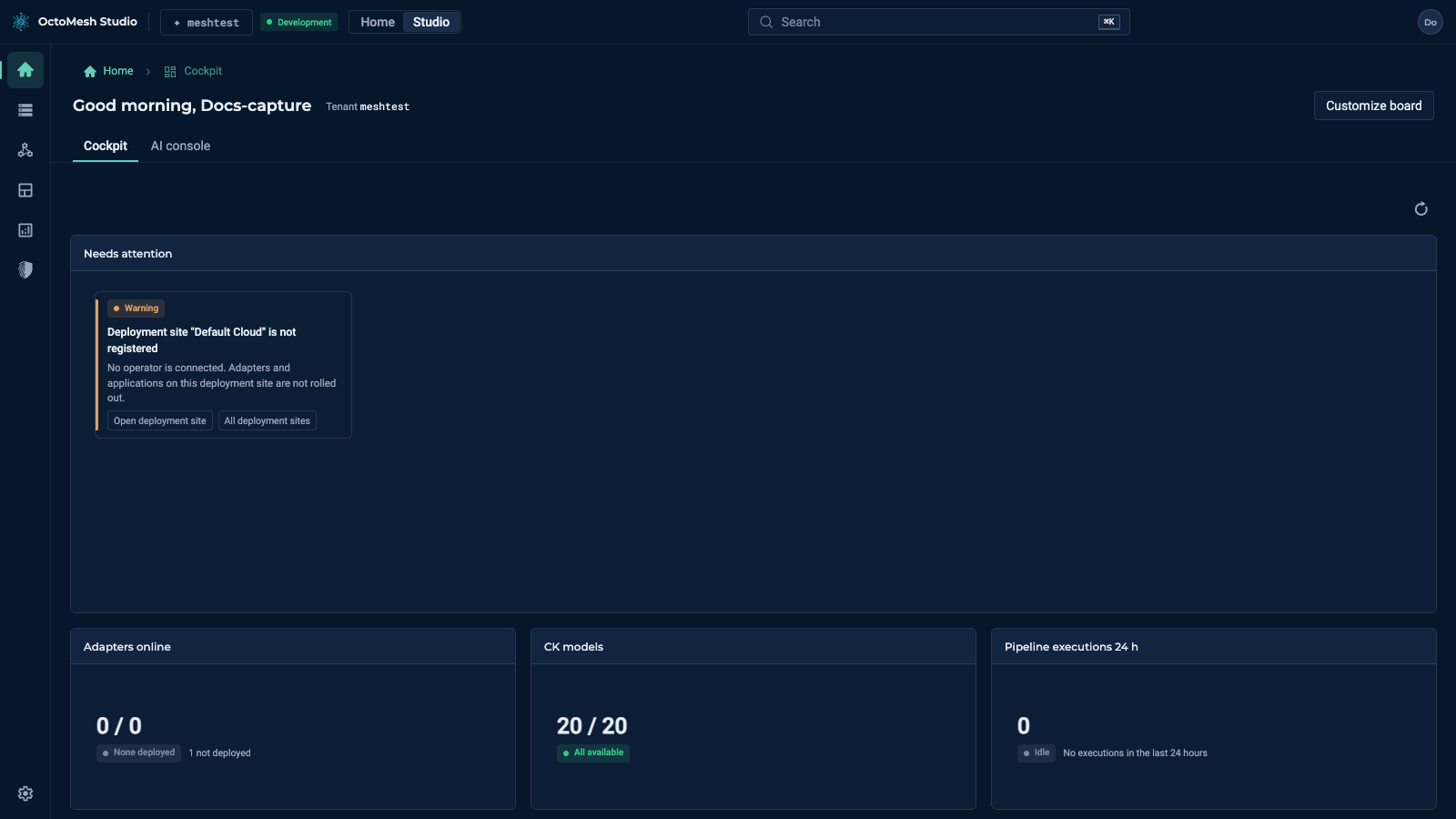
Refresh All Widgets reloads the data. Customize board opens the Cockpit board in UI > MeshBoards, where designers change widgets, settings and pinned boards.
Pinned MeshBoards
Designers choose which MeshBoards appear on Home. In UI > MeshBoards, Manage MeshBoards lists every board with the row action Pin to Home; a pinned board becomes a tab of Home for all users of the tenant.
Reports
Reports opens the report explorer. The tab appears for accounts with the role ReportingViewer or ReportingManagement. In the Studio mode the same page is UI > Reports and has the tabs Report Definitions, Resources and Shared Data Sources.
Files
Files opens the file system of the tenant. The tab appears for accounts with the role FileViewer or FileManagement, and only when the file API of the tenant is available; no Reporting role and no Studio mode are needed. In the Studio mode the same page is Data > Files, and Home does not list it.
AI console
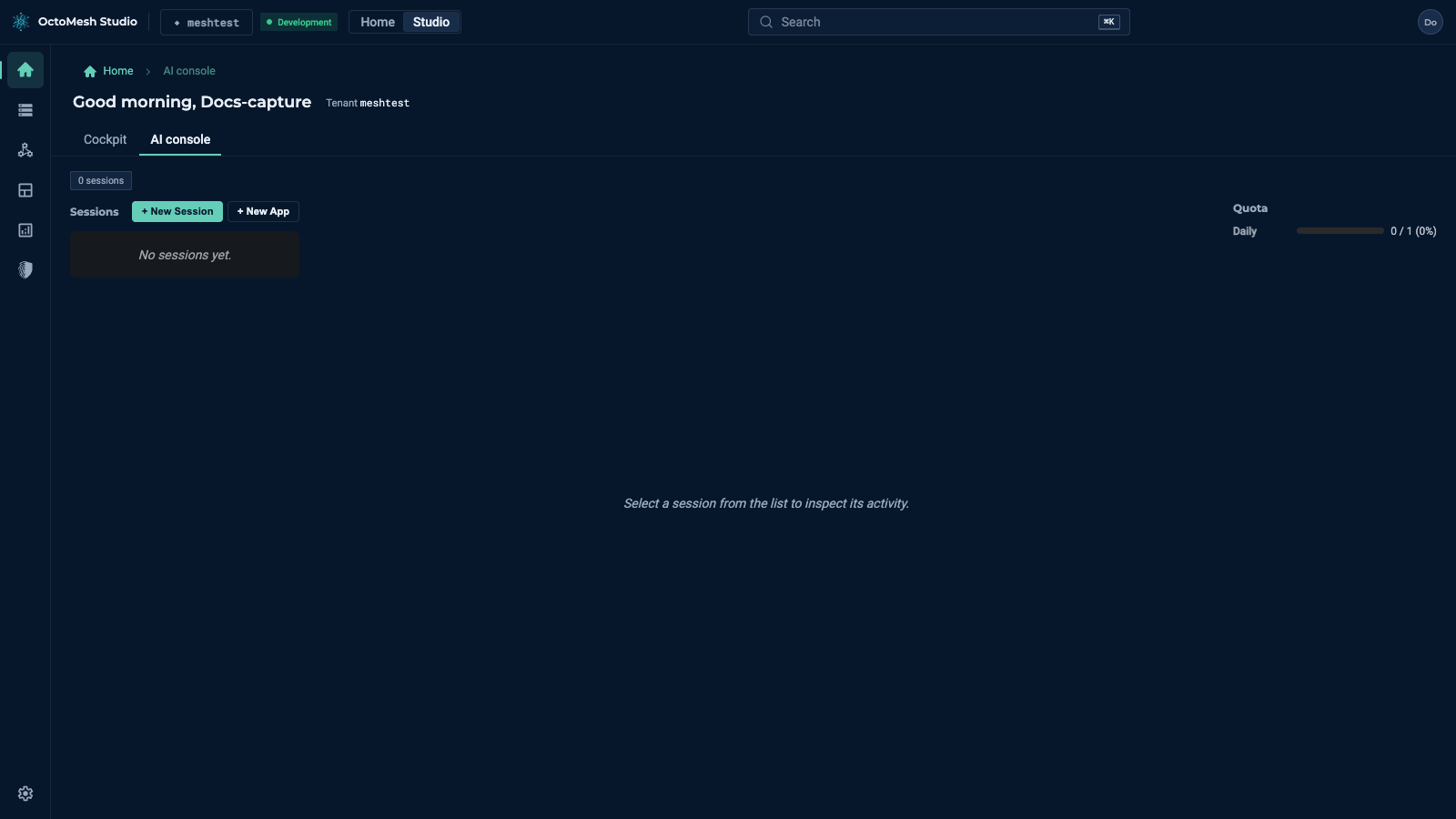
The AI console lists the AI sessions of the tenant (Sessions, with a count), shows the daily Quota and has + New Session and + New App; selecting a session shows its activity. The tab appears when the tenant has the AI services configured and its AI model, and while the beta area AI services is shown (Settings > Interface). The AI settings are under Settings > AI.
Applications
Applications that were rolled out to the tenant (see Applications) appear as further tabs after a separator, one per application.