Roles
Roles define what actions a user can perform in OctoMesh. Every permission check in the platform is based on roles. The Roles page lets you view, create, and delete roles in your tenant.
Roles can be assigned to users and to OAuth clients (machine-to-machine identities) — directly or through group membership. A client's assigned roles are carried in its client_credentials access token, so it can call role-protected endpoints.
Accessing Roles
Select Access > Roles in the rail (role UserManagement) to access the role management interface.
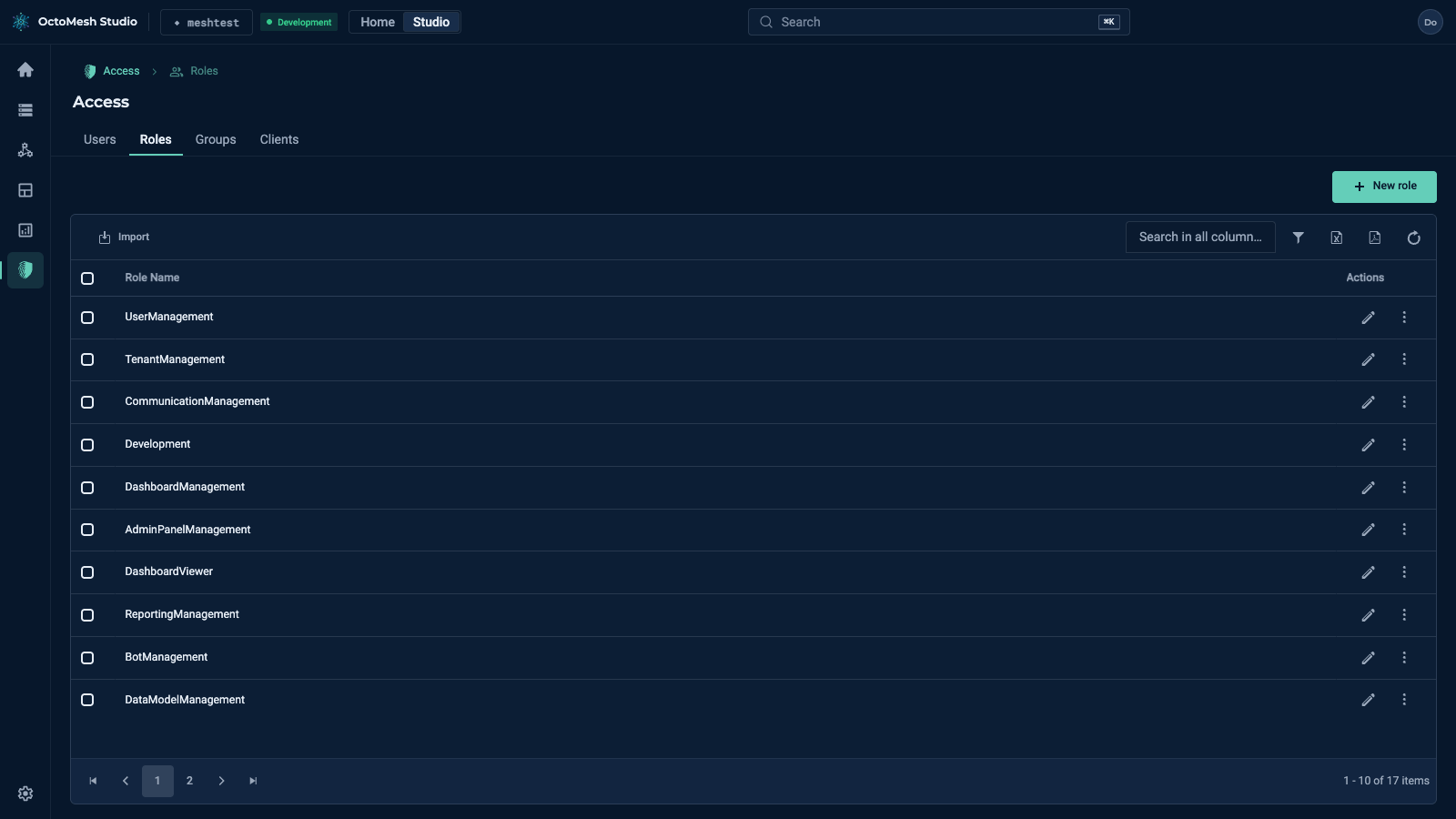
The list shows all roles in the current tenant:
| Column | Description |
|---|---|
| Role Name | The unique identifier of the role |
Toolbar Actions
| Button | Description |
|---|---|
| New role | Create a new custom role |
| Import | Import a role from a file |
| Search in all columns... | Filter roles by name |
| Show Row Filter | Show a filter row under the column header |
| Export to Excel | Export the role list to an Excel file |
| Export to PDF | Export the role list to a PDF file |
| Refresh Data | Reload the role list |
Row and Context Actions
| Action | Description |
|---|---|
| Edit | Open the role in the edit form |
| Actions | Menu of the row with Export (the role as a file) and Delete (with confirmation) |
Default Roles
Every tenant is automatically provisioned with default roles (the table lists them):
| Role | Purpose |
|---|---|
| TenantManagement | Manage tenant settings, identity providers, and email domain rules |
| UserManagement | Manage users, roles, groups, and OAuth clients |
| CommunicationManagement | Configure communication adapters and deployment sites |
| Development | Access development features (e.g., GraphQL playground) |
| AdminPanelManagement | Access management/admin features in Refinery Studio (system configuration, repository administration). Retained name from the retired Admin Panel. |
| BotManagement | Configure and manage scheduled jobs |
| DashboardManagement | Create and edit MeshBoards |
| DashboardViewer | View MeshBoards (read-only) |
| ReportingManagement | Create and manage reports |
| ReportingViewer | View reports (read-only) |
| DataModelManagement | Manage the data model (Construction Kit models) |
| StreamDataAdmin | Manage Stream Data archives (needed for every action on the archives page) |
| StreamDataWriter | Write stream data |
| StreamDataReader | Read stream data |
| SecretManagement | Manage secret values of the tenant |
| FileManagement | Create, rename, move and delete files in Files |
| FileViewer | Read files in Files |
Creating a Role
Click New role to open the role creation form.
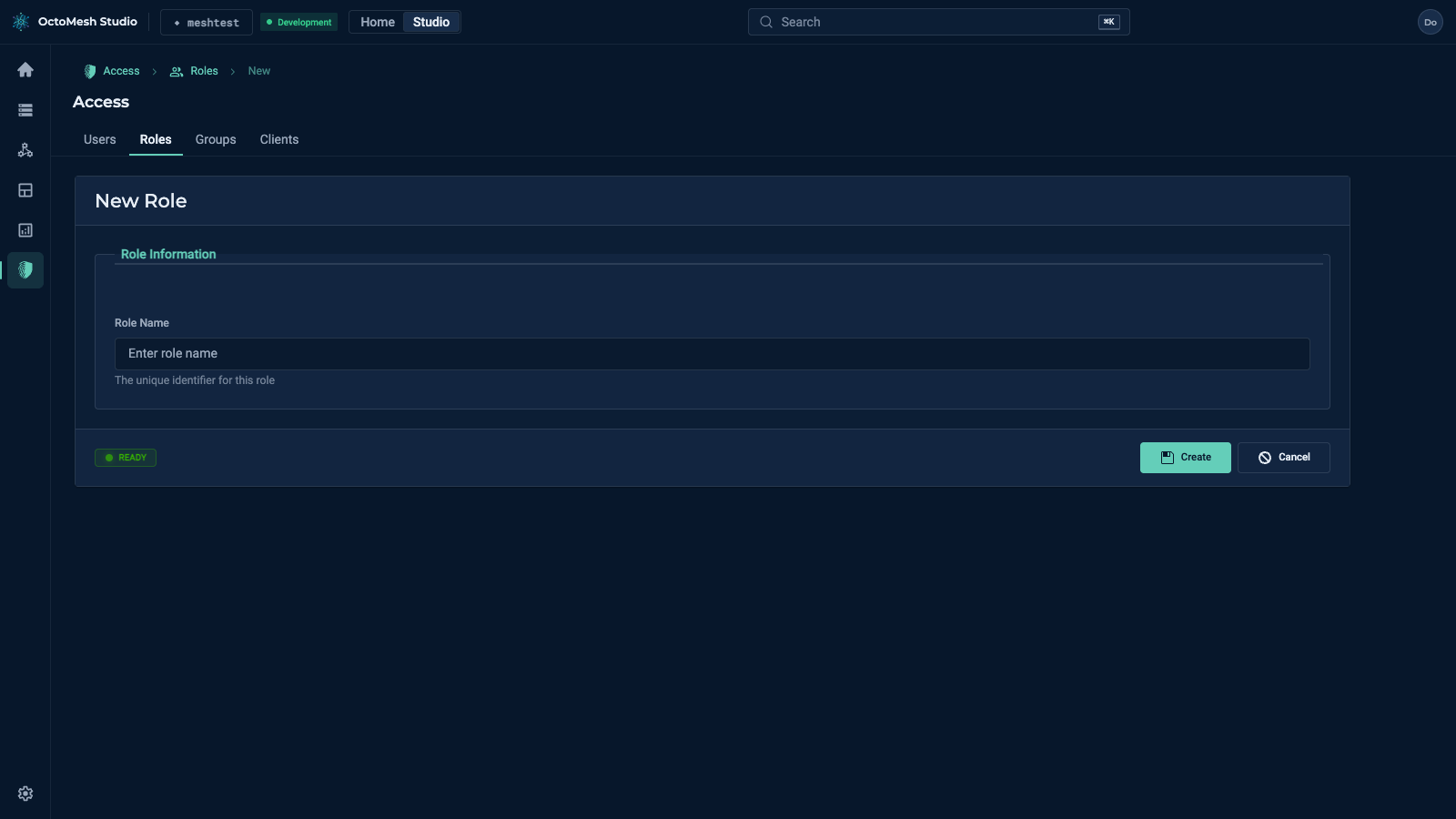
| Field | Required | Description |
|---|---|---|
| Role Name | Yes | Unique identifier for the role |
Click Save to create the role or Cancel to discard.
Editing a Role
Click Edit on a role row to open the edit form. The Role Name is read-only in edit mode.
Roles are simple named entities. To assign a role to users, either add it directly to a user (via the user form) or add it to a group (via the group form). Using groups is recommended.
Deleting a Role
Open the Actions menu of a role and select Delete. Confirm the deletion in the dialog.
Deleting a role removes it from all users and groups that have it assigned. Users who relied on that role will lose the associated permissions immediately.