Explorer
The Explorer is the one place in Refinery Studio to look at the data of a tenant. It replaces the former Construction Kit browser, the Runtime Browser and the Query Builder page. You use it to
- find a Construction Kit (CK) type, a model or a single entity,
- see the entities of a type in a grid and open one of them,
- follow the associations of an entity,
- turn what you see into a saved query (see Queries).
Open it with Data > Explorer in the rail. The page title is Data Explorer. The header has two tabs: Browse (this page) and Queries (the saved queries).
The Browse tab
The Browse tab has three panes. The toolbar above them has the actions Import model, Refresh, Aggregate…, Save as query and New entity. The last three need a selected type; until then they show "Select a type first".
Find (left pane)
The left pane has four tabs:
| Tab | What it does |
|---|---|
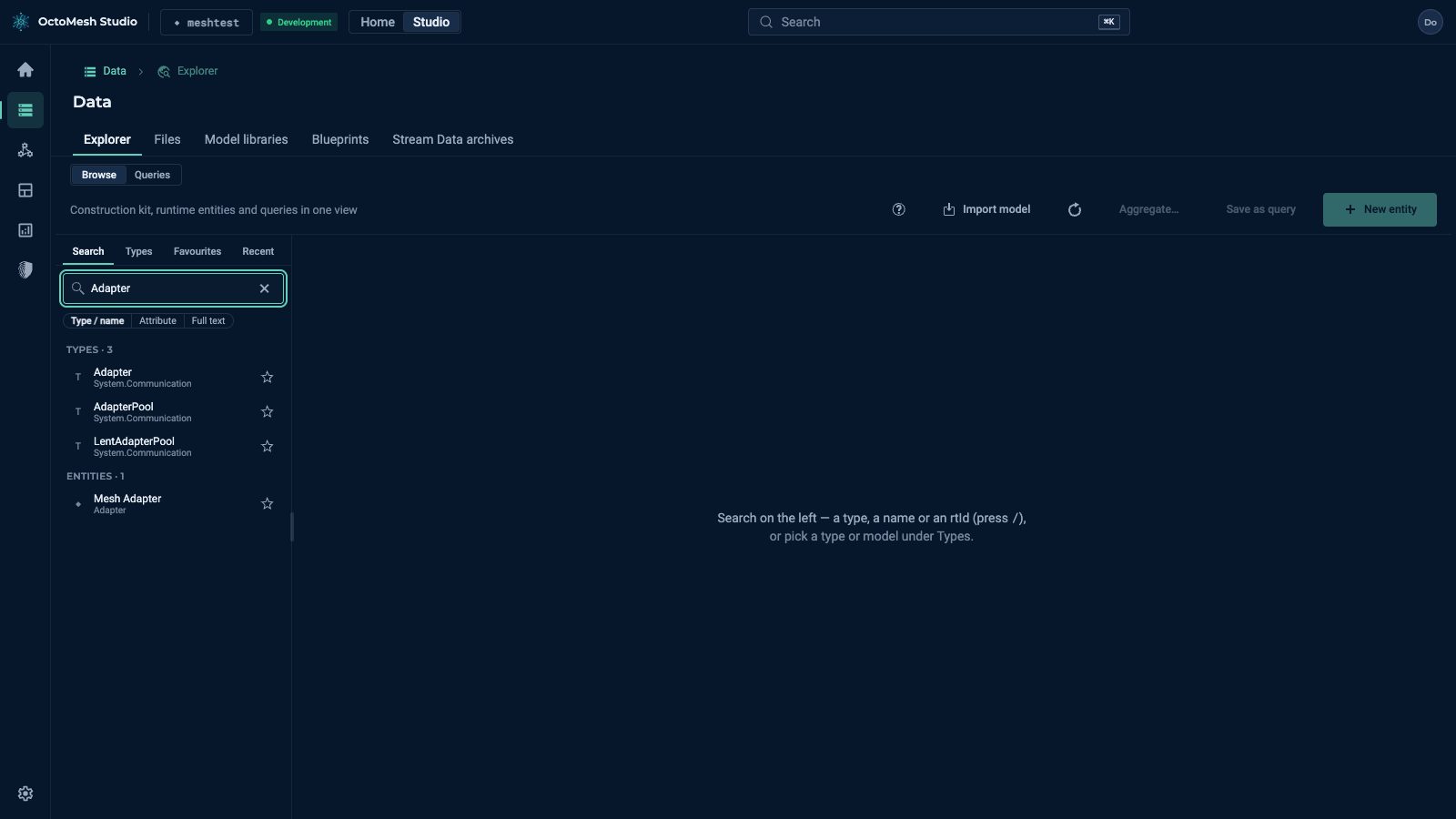
| Search | One field for everything. Type a CK type name, a name of an entity, or an rtId (24 hex characters); an rtId opens the entity at once. Inside a selected type, attribute:value searches with like and attribute=value with equals. Press / to jump to the field. The chips Type / name, Attribute and Full text show how the input is read. |
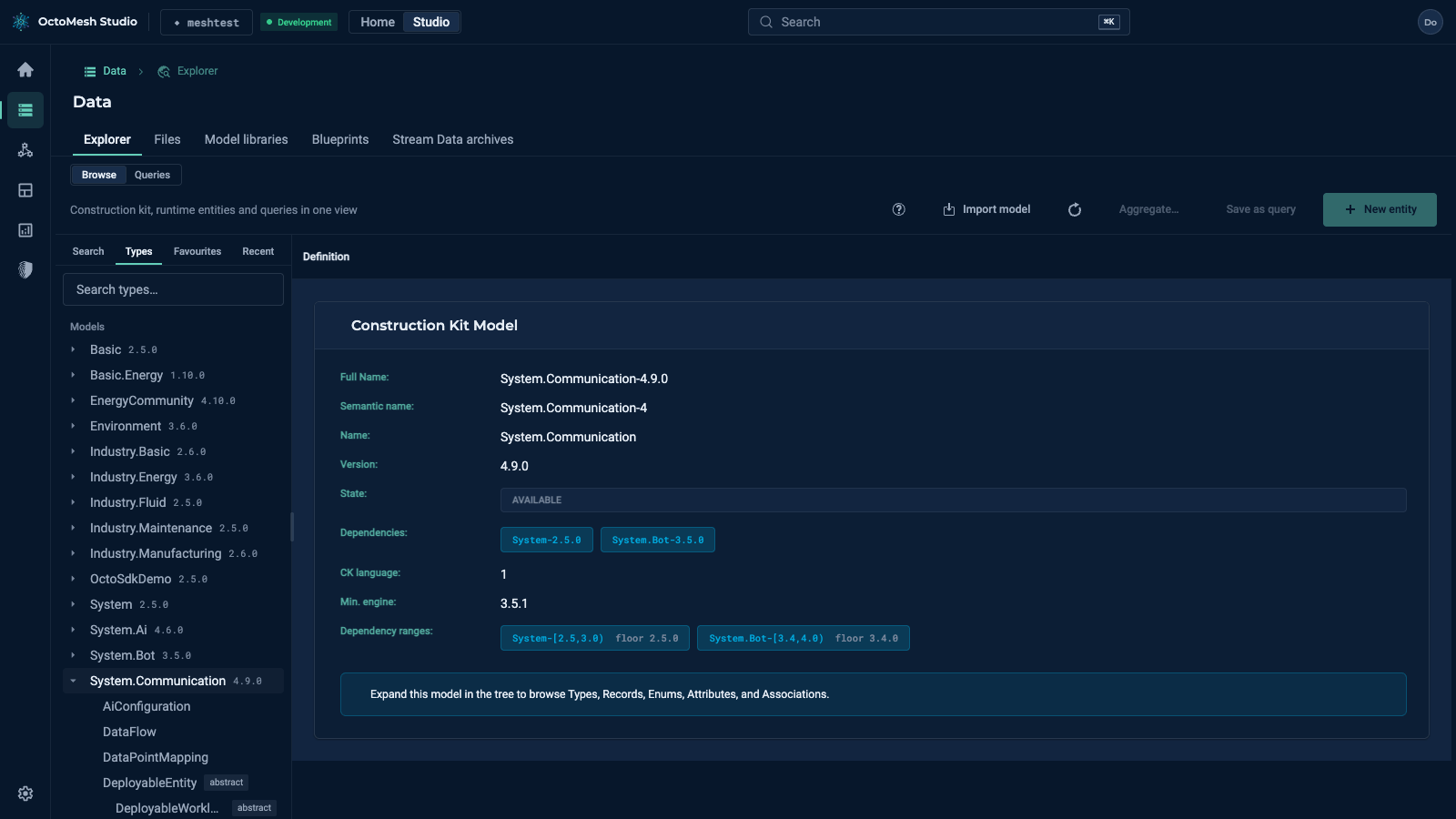
| Types | All models with their version (for example Basic 2.4.0) as a tree. Expand a model to see its types; derived types are nested below their base type. Select a type to show its entities. |
| Favourites | Types and entities you marked with the star. They are stored per user and tenant in the browser. |
| Recent | The types and entities you opened last. |
The last tab you used is remembered.
Entities (centre)
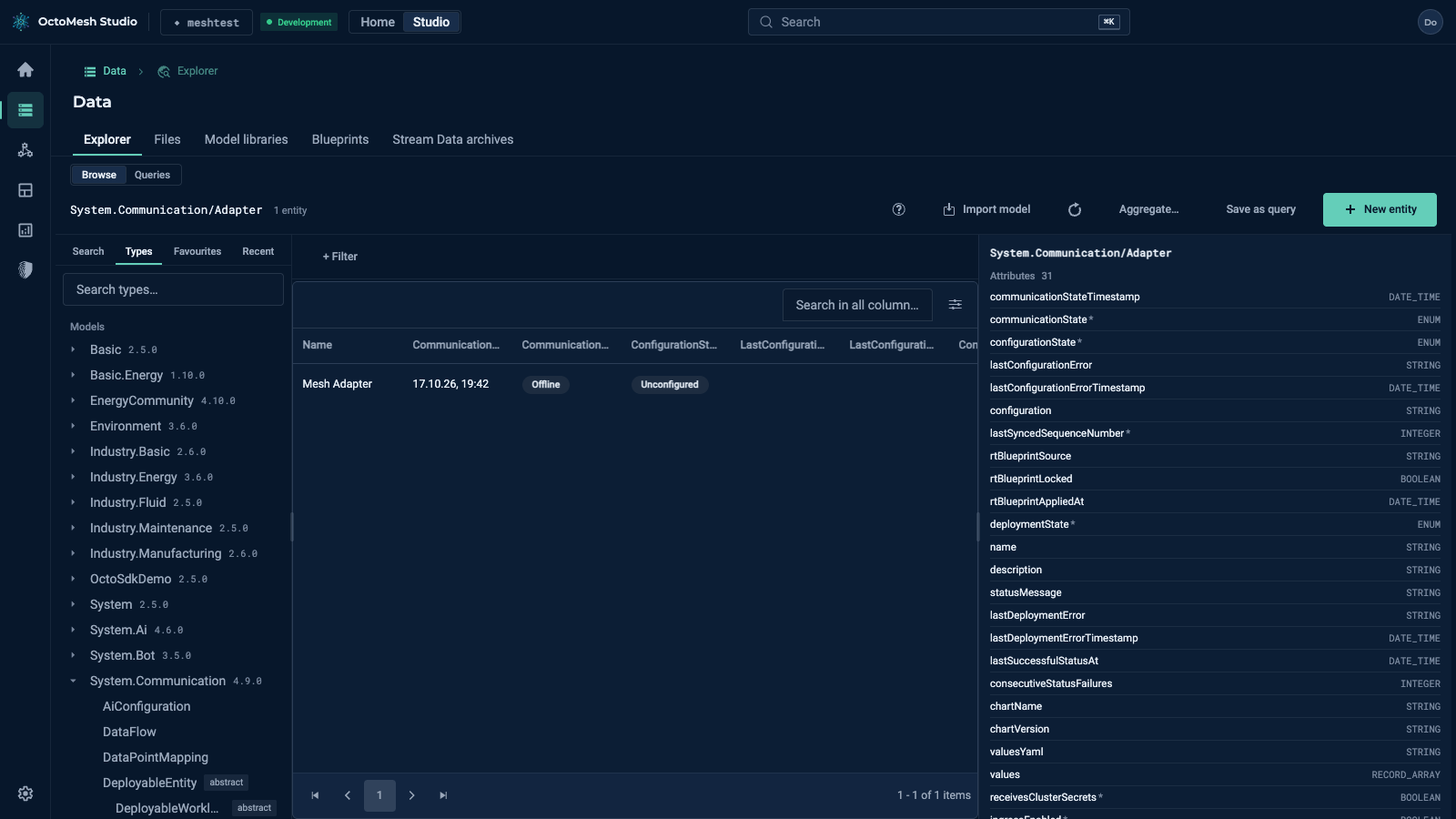
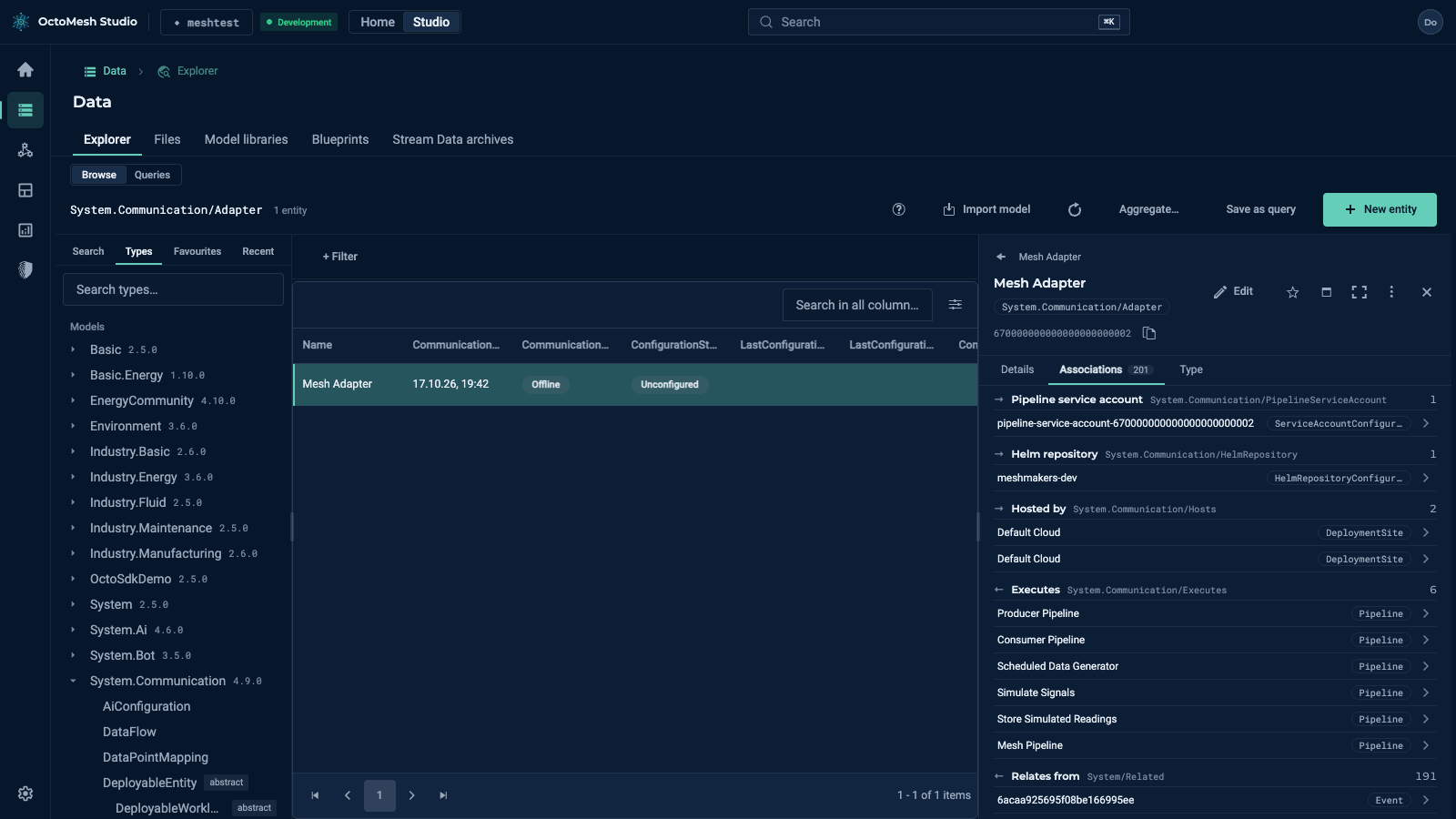
After you select a type, for example System.Communication/Adapter, the centre shows a grid with the entities of this type and of its derived types. The header shows the type and the number of entities ("1 entity").
- + Filter adds a filter chip: attribute, operator and value. Several chips are combined with AND.
- The grid shows up to eight attribute columns, the CK type and the change time. Secret attributes are never shown. Enumerations appear as coloured chips (for example Online, Configured).
- Actions at the end of a row opens the row actions.
Type and entity (right pane)
Without an open entity, the right pane shows the type: its attributes (with data type; * marks required attributes), its associations and a link to the Full definition of the type.
Click a row to open the entity next to the grid. The URL then contains the type and the rtId. The entity pane has the tabs Details, Associations and Type:
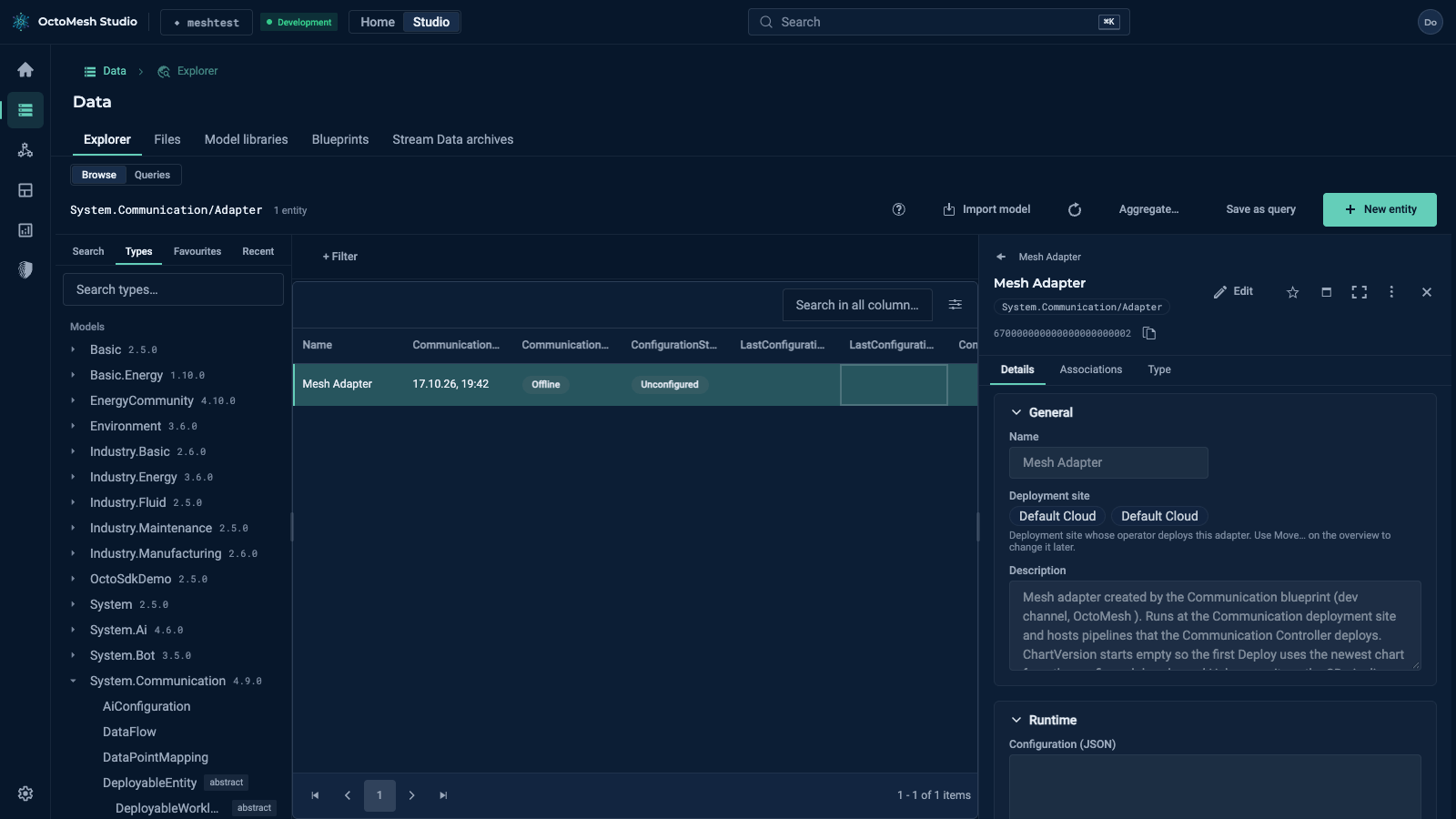
- Details shows the attributes in groups (for example General, Runtime, Helm deployment). Edit switches to editing, Edit in dialog and Open in full page give more room. Copy rtId copies the id.
- Associations lists the entities that are connected to this one; click one to open it.
- Close entity (or
Esc) closes the pane. If you have unsaved changes, Studio asks first.
Attributes of the runtime state (for example the connection state of an adapter) are read-only. Creating, editing and deleting entities needs the role AdminPanelManagement; without it the pane only shows the entity.
From Data to a result
- Select Data in the rail, then Explorer (the Browse tab opens).
- In Search, type part of a type name, or open Types and expand a model. Select the type.
- Optionally add one or more filters with + Filter.
- Click a row to see the entity and its associations.
- To keep the view, click Save as query and give it a name, or click Aggregate… to continue in the query editor with the type, columns and filters already filled in.
Other actions
- New entity creates an entity of the selected type; for an abstract type you choose a concrete subtype first.
- Import model imports a Construction Kit model from a file (
.zipor.yaml); the models themselves are managed under Model libraries.