Files
Files is the file system of the tenant: you keep receipts, images, exports and any other file here and organise them in folders. Pipelines, apps and the CLI address the files by the name of their root; the entities that use a file are listed with it.
Open it with Data > Files in the rail. Reading needs the role FileViewer (or FileManagement); creating, renaming, moving and deleting needs FileManagement. The tab is only shown when the file API of the tenant is available.
The page
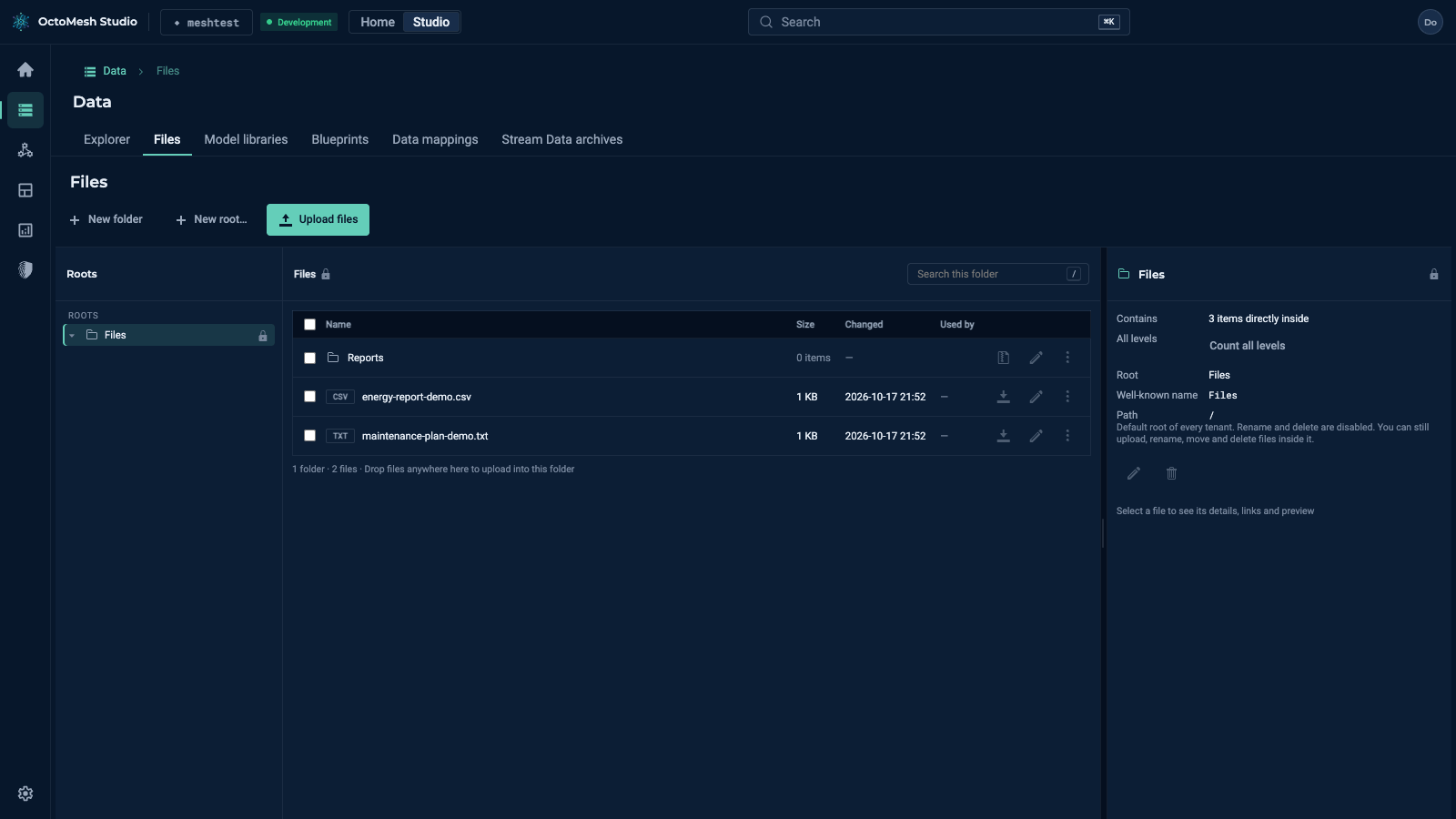
The page has three panes and the toolbar New folder, New root… and Upload files.
| Pane | Content |
|---|---|
| Roots (left) | The roots of the tenant as a tree with their folders. Every tenant has the root Files (marked Locked): it cannot be renamed or deleted, but you can upload, rename, move and delete files inside it. |
| Folder (centre) | The files and folders of the selected folder with the columns Name, Size, Changed, Used by and Actions. Search this folder (key /) filters the list; the header sorts by name, size or change time. Drop files anywhere on the list to upload them into the folder. |
| Details (right) | For a folder: number of items (Count all levels includes subfolders), root, well-known name and path. For a file: see below. |
The address keeps the position (.../data/files?root=Files&file=<name>), so you can share a link to a file.
Folders and roots
- New folder creates a folder in the selected folder. Type the name and press
Enter. - New root… opens the dialog New root with Name and Well-known name. The well-known name is how pipelines, the CLI and apps address the root; use letters, digits and underscores. It cannot be changed later. Confirm with Create root.
- Rename changes the name of a folder or file. Download as zip on a folder downloads its files.
- Delete… on a folder asks
Delete folder "<name>"?: it is deleted permanently and cannot be undone; if any item may not be deleted, nothing is deleted.
Files
- Upload files (or drag and drop) uploads one or more files into the selected folder. The pane Uploads to <root> shows the progress ("1 done").
- The row actions are Download, Rename and More actions with Move… and Delete…. Deleting a file asks
Delete <name>?— it will be deleted permanently and this cannot be undone. - A click on a file opens the details with the tabs:
| Tab | Content |
|---|---|
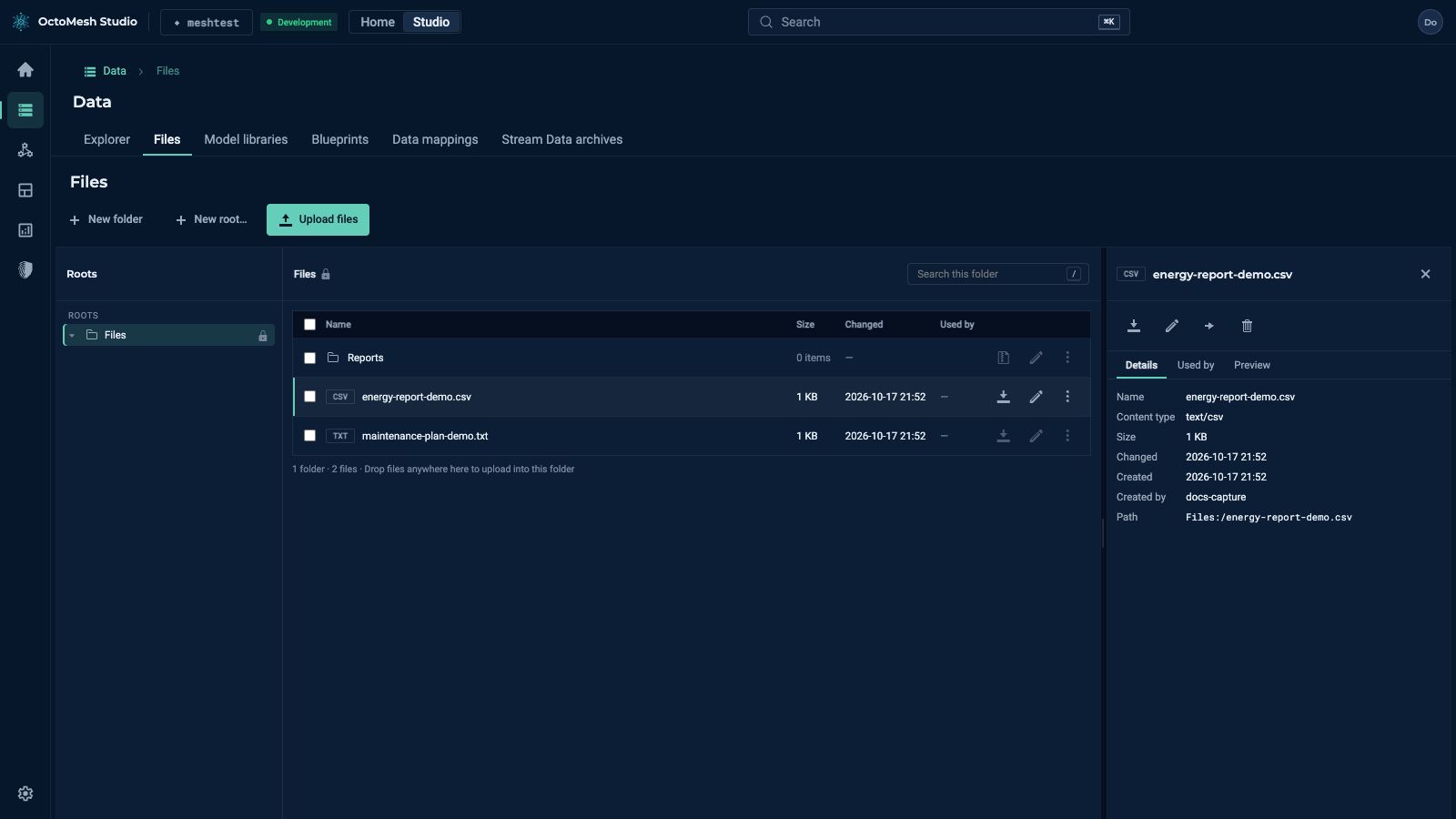
| Details | Name, content type, size, changed, created, created by and the path (for example Files:/demo.csv). The buttons above are Download, Rename, Move and Delete; Close details closes the pane. |
| Used by | The entities that link to the file. Read only: the app that owns the entity sets the links. A file without links shows "Not linked to any entity." |
| Preview | A preview of the file where the type supports it. |