Query Builder
The Query Builder in OctoMesh Refinery Studio allows you to create, save, and execute queries against your OctoMesh Runtime entities. It provides a visual interface for building queries without writing GraphQL code directly.
Accessing Query Builder
Navigate to Repository > Query Builder to access the query management interface.
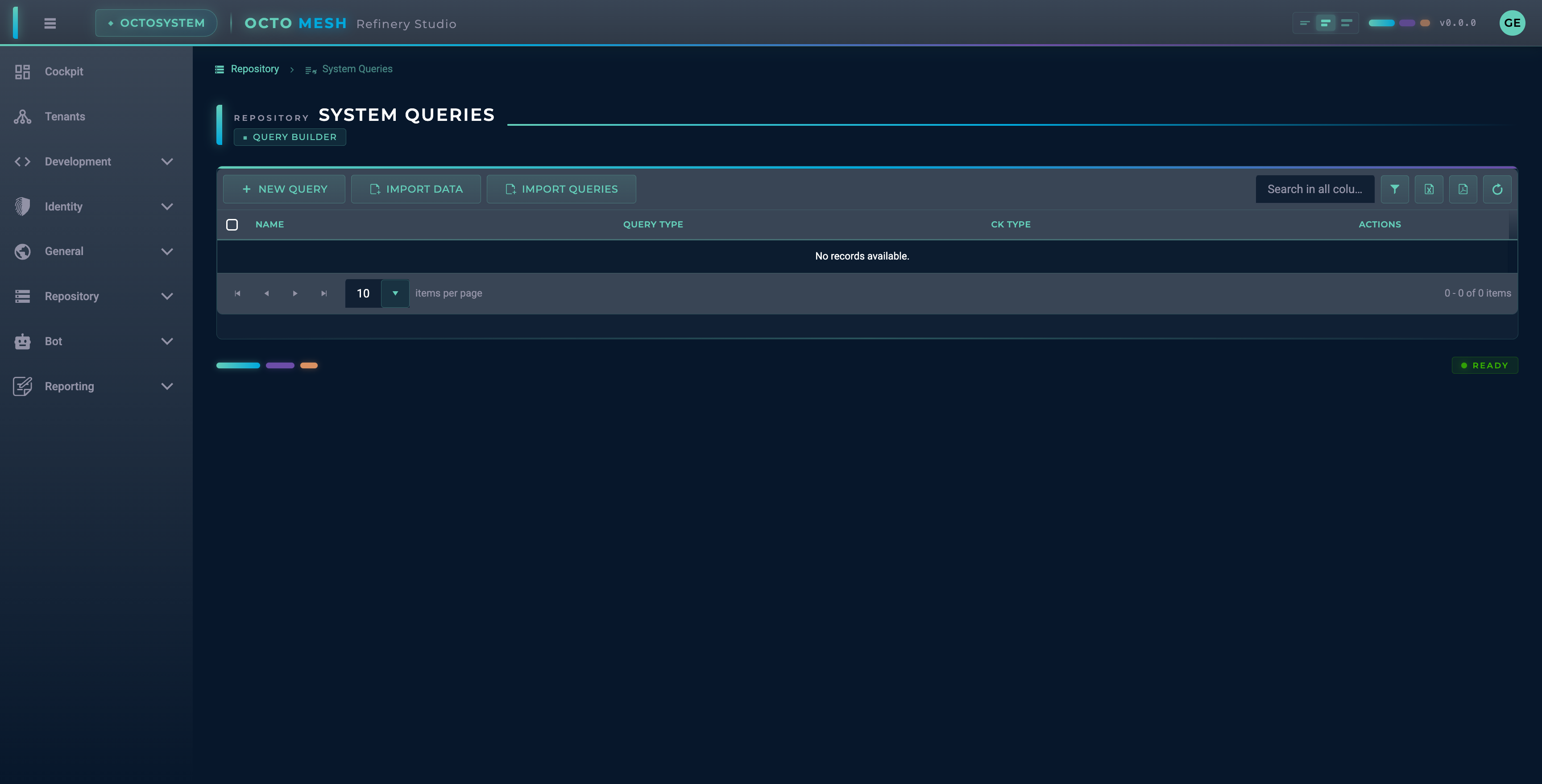
The list view shows all saved queries with their name, query type, and CK type. It provides actions to edit or delete them.
Toolbar Actions
| Button | Description |
|---|---|
| NEW QUERY | Create a new query |
| IMPORT DATA | Import data from a file |
| IMPORT QUERIES | Import query definitions from a file |
| Export to Excel | Export the query list to an Excel file |
| Export to PDF | Export the query list to a PDF file |
| Refresh Data | Reload the query list from the server |
Row Actions
Each query row provides the following action buttons:
| Action | Description |
|---|---|
| Run | Execute the query and view results |
| Edit | Open the query in the editor |
Context Menu
Right-clicking on a query row opens a context menu with additional actions:
| Action | Description |
|---|---|
| Duplicate | Create a copy of the query |
| Export Results | Execute the query and export results as a ZIP file |
| Export Query | Export the query definition as a ZIP file |
| Delete | Delete the query (with confirmation) |
Creating a New Query
Click NEW QUERY to open the query configuration form.
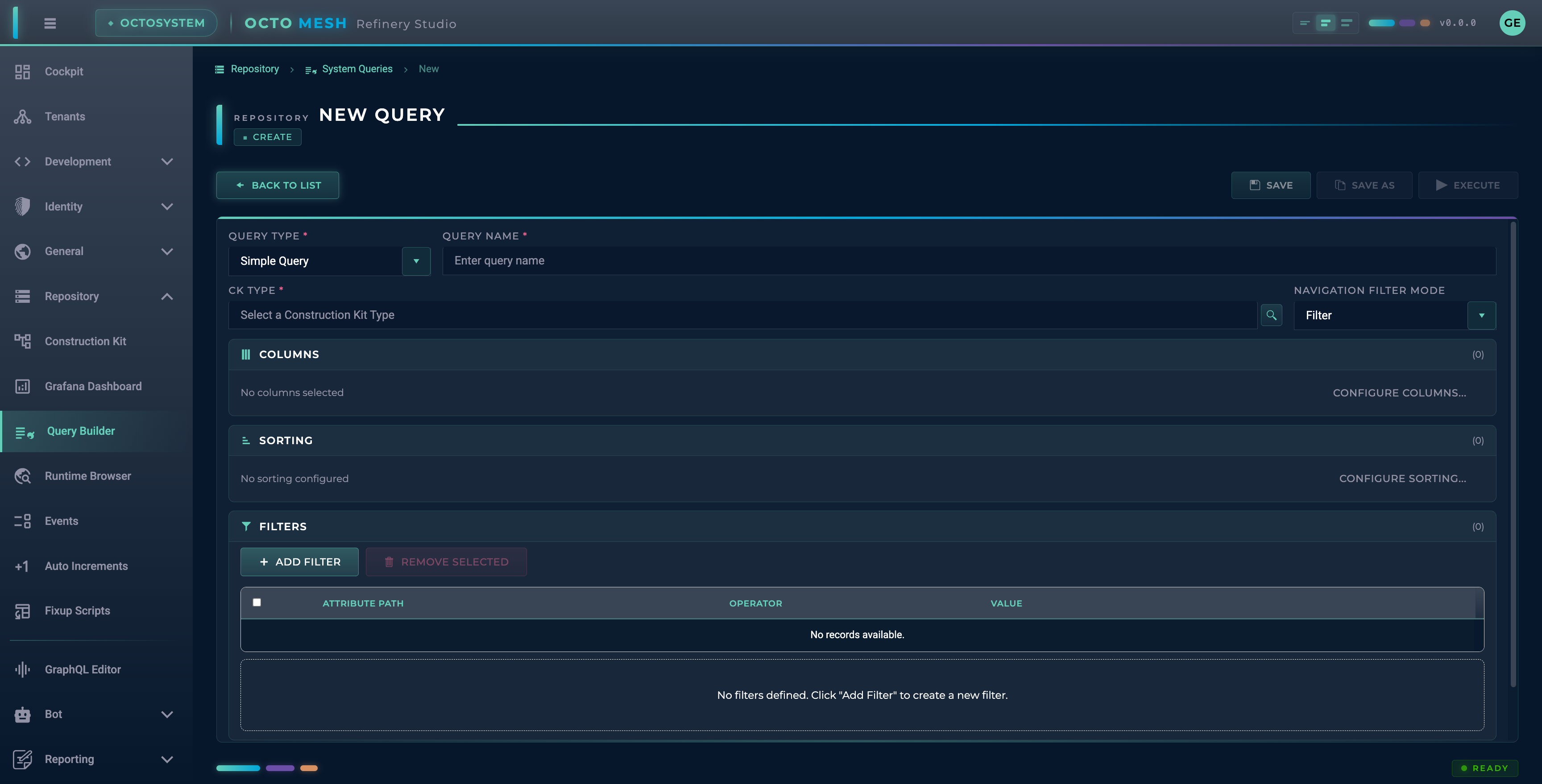
Query Configuration
The query form has several sections:
Basic Settings
The basic settings are arranged in two rows for a compact layout:
Row 1: Query Type and Name
| Field | Description |
|---|---|
| Query Type | Select the type of query (Simple, Aggregation, or Grouped Aggregation). Each option includes a short description. |
| Query Name | A descriptive name for your query |
Row 2: CK Type and Navigation Filter Mode
| Field | Description |
|---|---|
| CK Type | The Construction Kit type to query |
| Navigation Filter Mode | Controls how entities without matching navigation associations are handled (see below) |
Navigation Filter Mode
The Navigation Filter Mode determines how entities are treated when they have no matching navigation associations:
| Mode | Description |
|---|---|
| Filter | Entities without matching navigation associations are excluded from the result set. |
| Include | Entities without matching navigation associations are kept with null values. |
Query Types
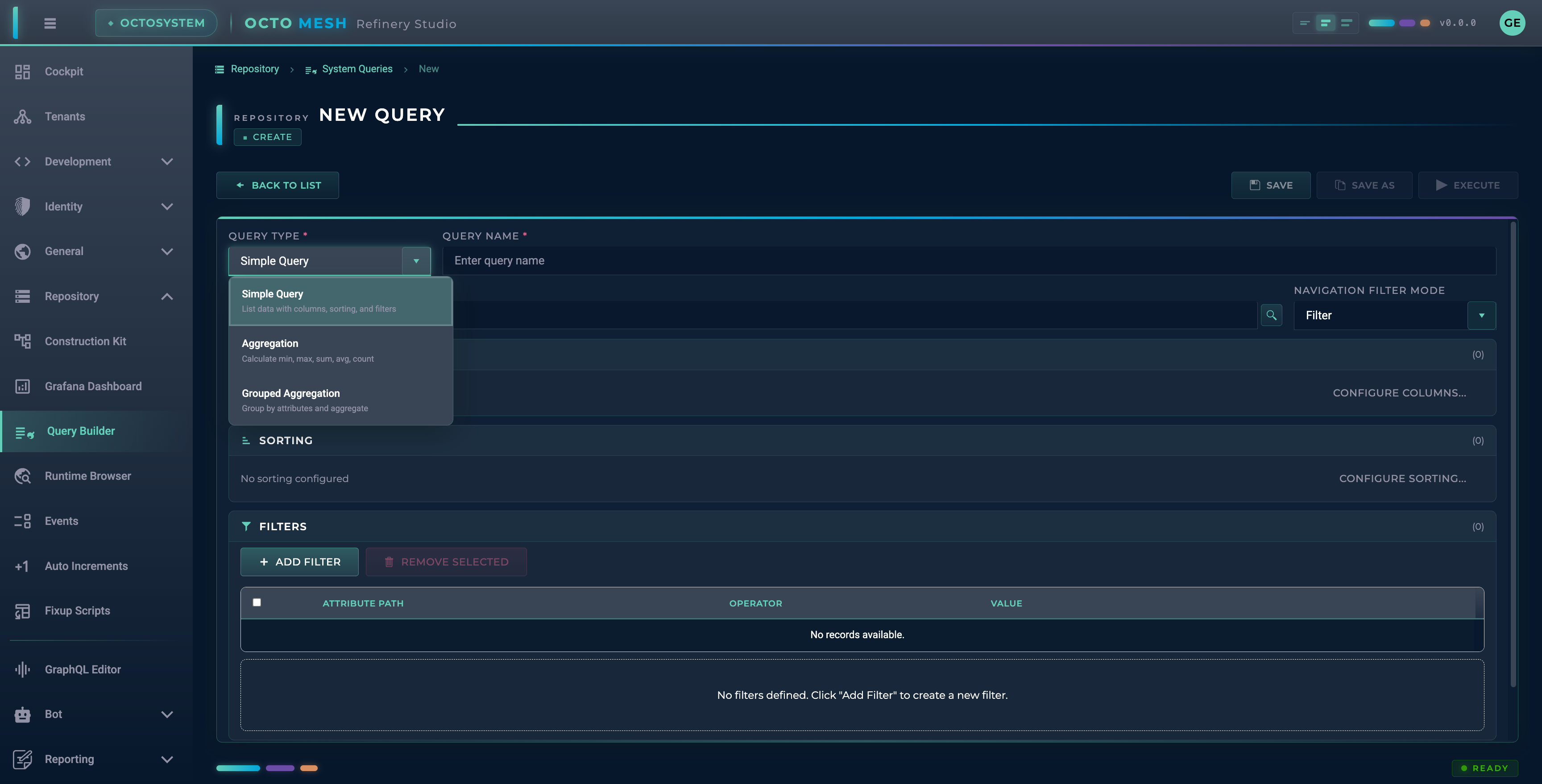
| Type | Description |
|---|---|
| Simple Query | Returns a list of entities with selected attributes |
| Aggregation | Performs aggregate calculations (COUNT, SUM, AVG, MIN, MAX) on all matching entities |
| Grouped Aggregation | Groups entities by an attribute and performs aggregate calculations per group |
Selecting a CK Type
Click the SELECT button next to the CK Type field to open the type selector.
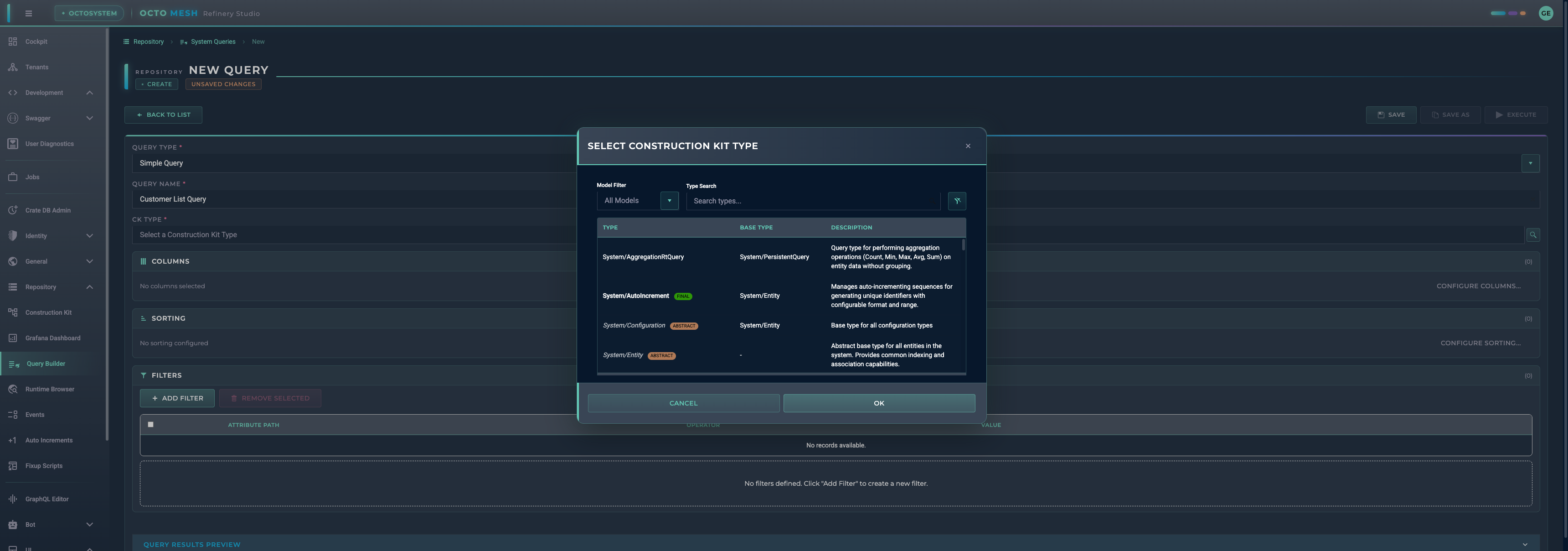
The selector dialog shows all available Construction Kit types organized by package. Use the search field to filter types by name. Click on a type to select it.
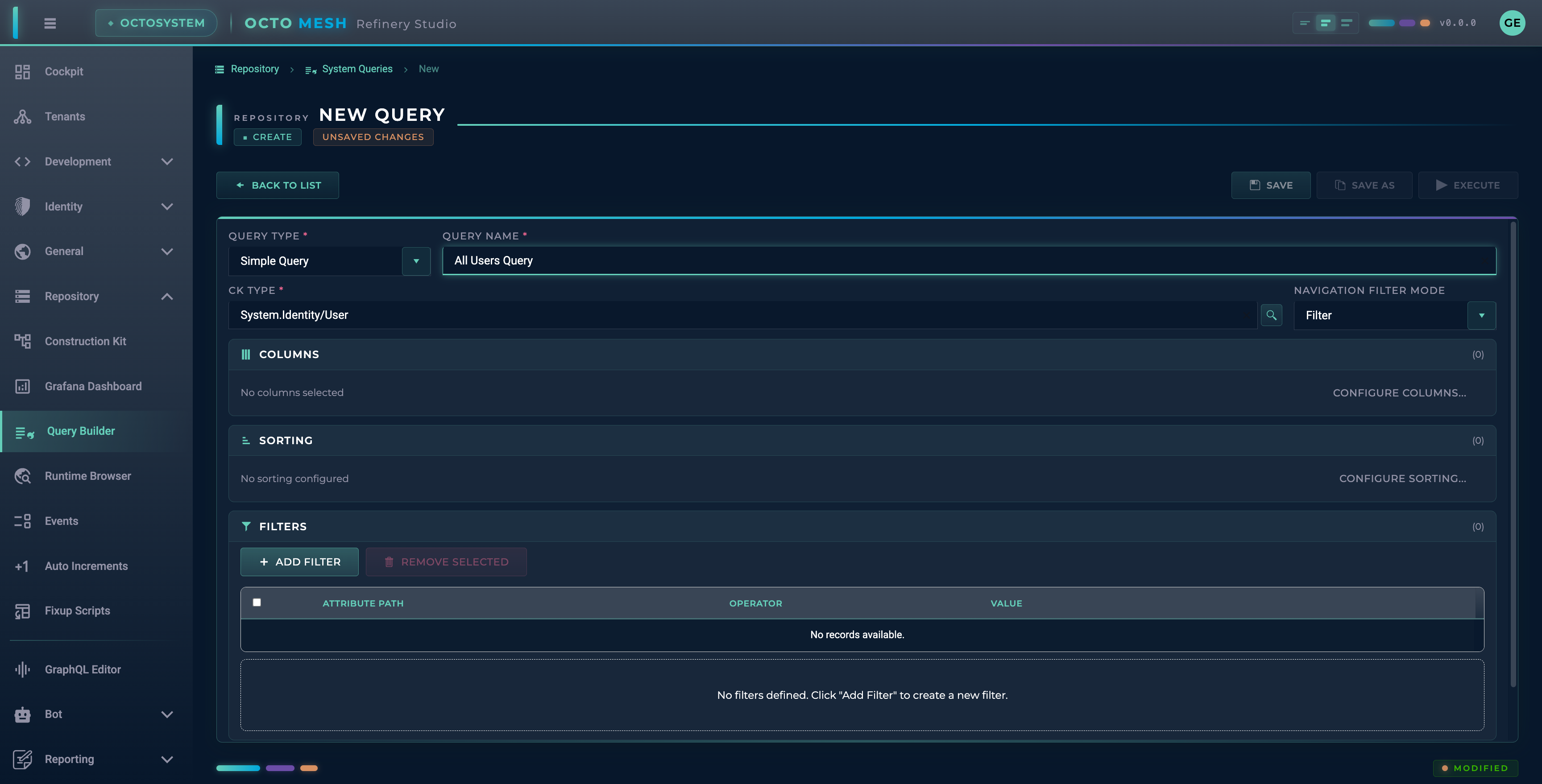
After selection, the CK Type field shows the selected type (e.g., System.Identity/User).
Simple Query Configuration
For Simple Queries, you configure columns, sorting, and filters.
Columns
Click ADD COLUMNS to select which attributes to include in query results.
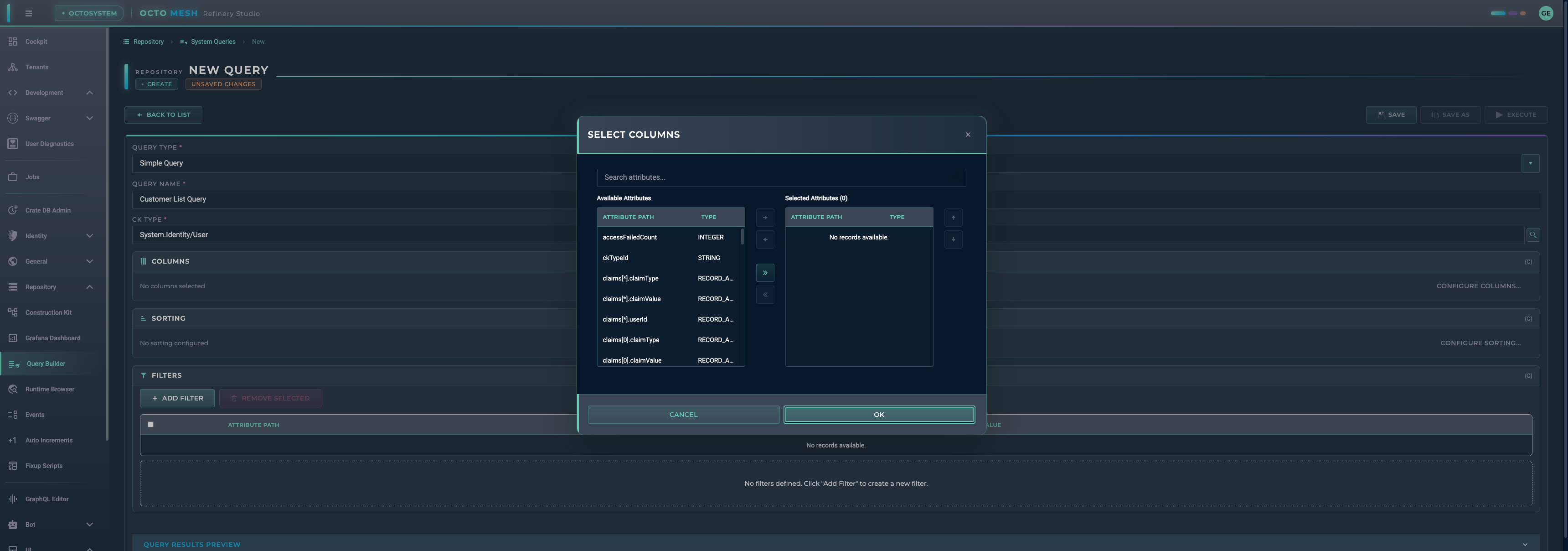
The column selection dialog shows:
- Available attributes (left panel): All attributes from the selected CK Type with their data types
- Selected columns (right panel): Attributes included in query results
Attribute types displayed include:
STRING- Text valuesINTEGER- Whole numbersINTEGER_64- Large whole numbersBOOLEAN- True/false valuesDATE_TIME- Date and time valuesDATE_TIME_OFFSET- Date and time with timezoneSTRING_ARRAY- List of text valuesRECORD_ARRAY- List of complex records
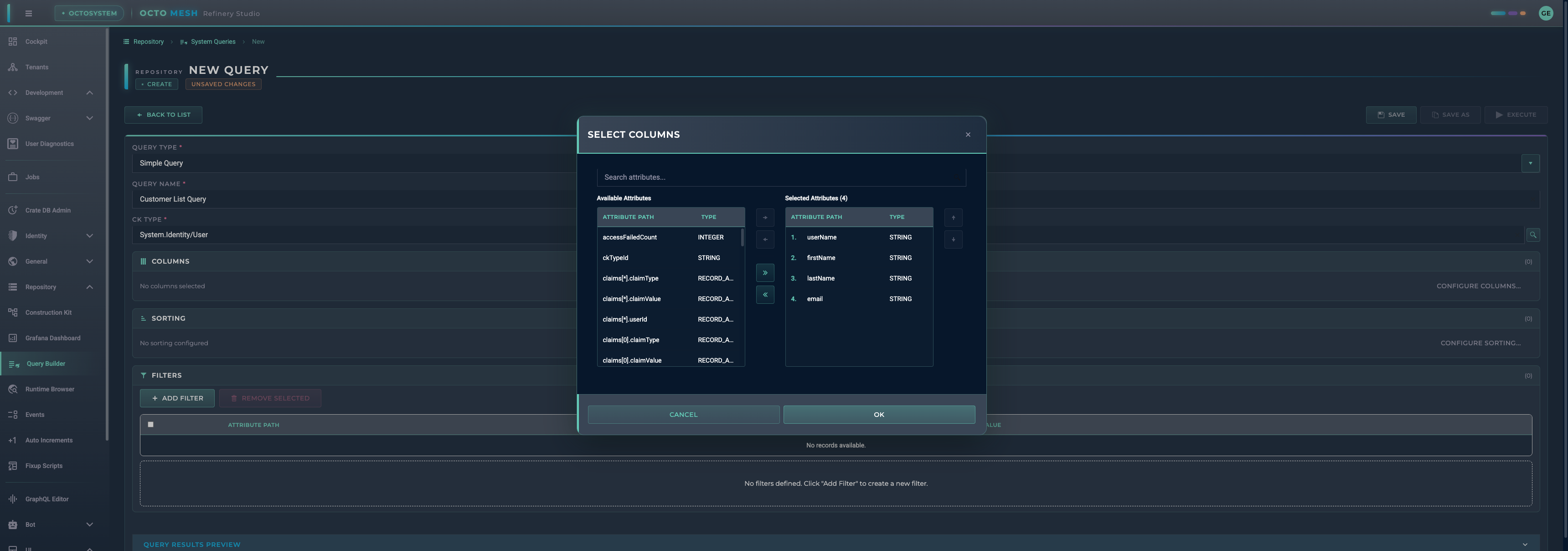
Use the arrow buttons to:
- Add selected attributes to the query
- Remove attributes from the query
- Reorder columns (move up/down)
Sorting
Add sorting rules to control the order of results:
- Click ADD SORTING
- Select the attribute to sort by
- Choose ascending or descending order
Multiple sort rules are applied in order.
Configured Query
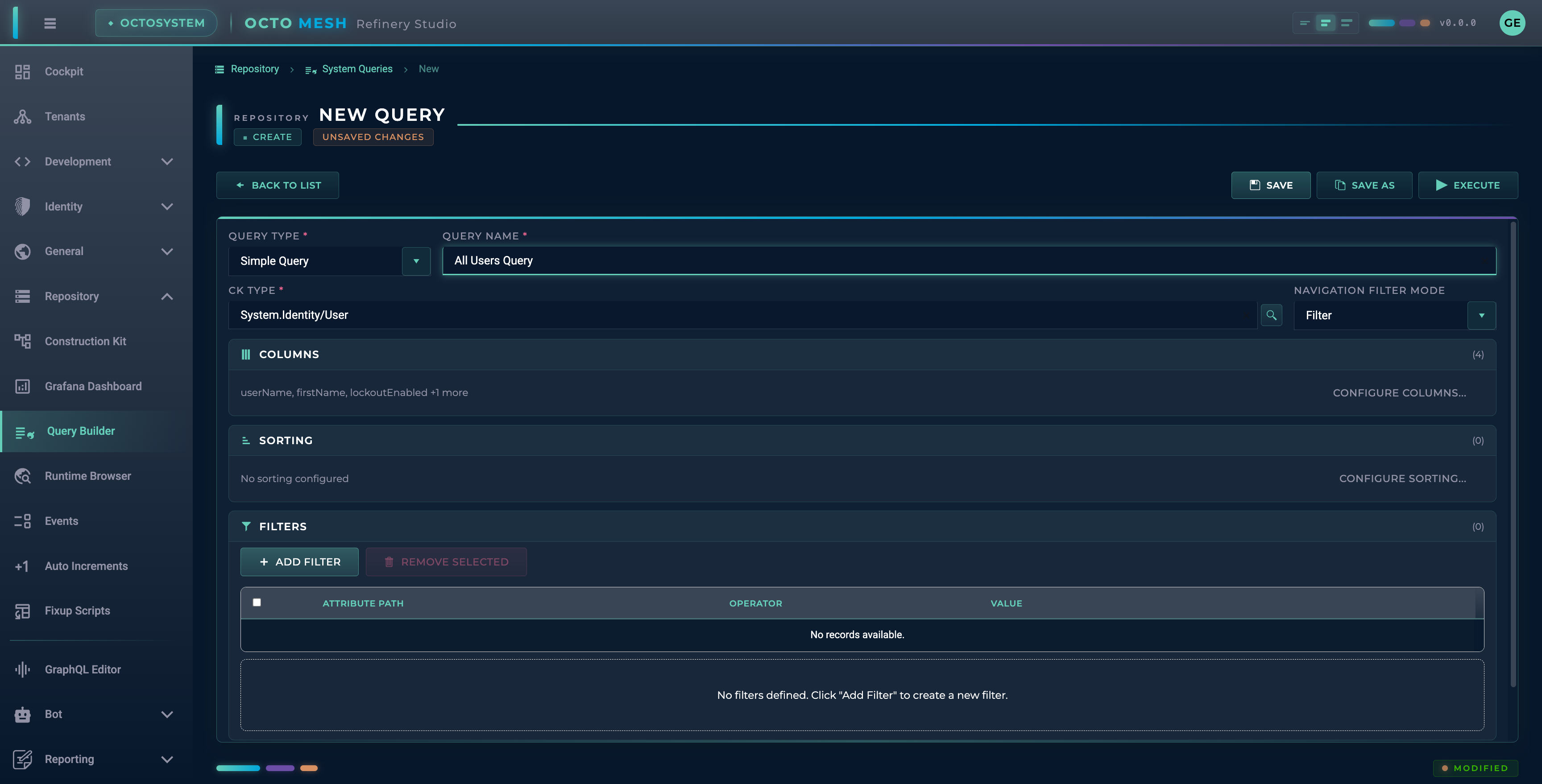
Once columns are configured:
- The SAVE button becomes enabled
- The EXECUTE button becomes enabled
- Column count is displayed (e.g., "4 Columns Selected")
Filters
Filters narrow down the query results based on attribute values.
Adding Filters
Click ADD FILTER to add a filter row.
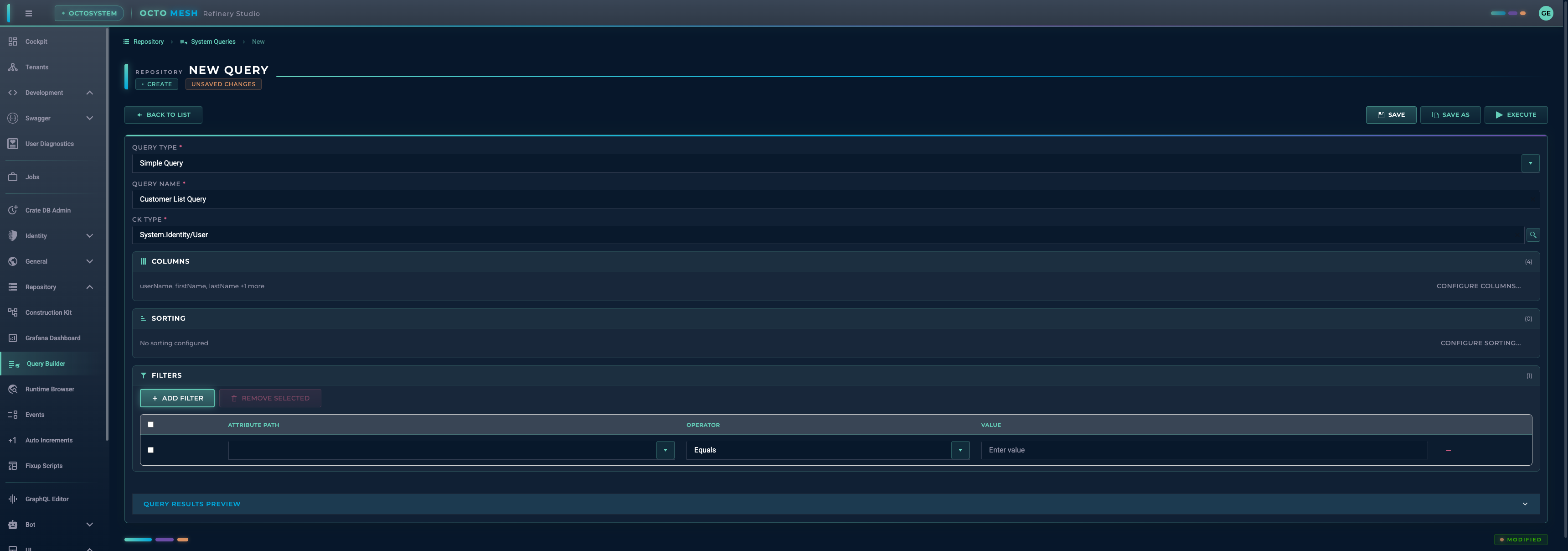
Each filter consists of:
- Attribute: The attribute to filter on
- Operator: The comparison operator
- Value: The value to compare against
Filter Attributes
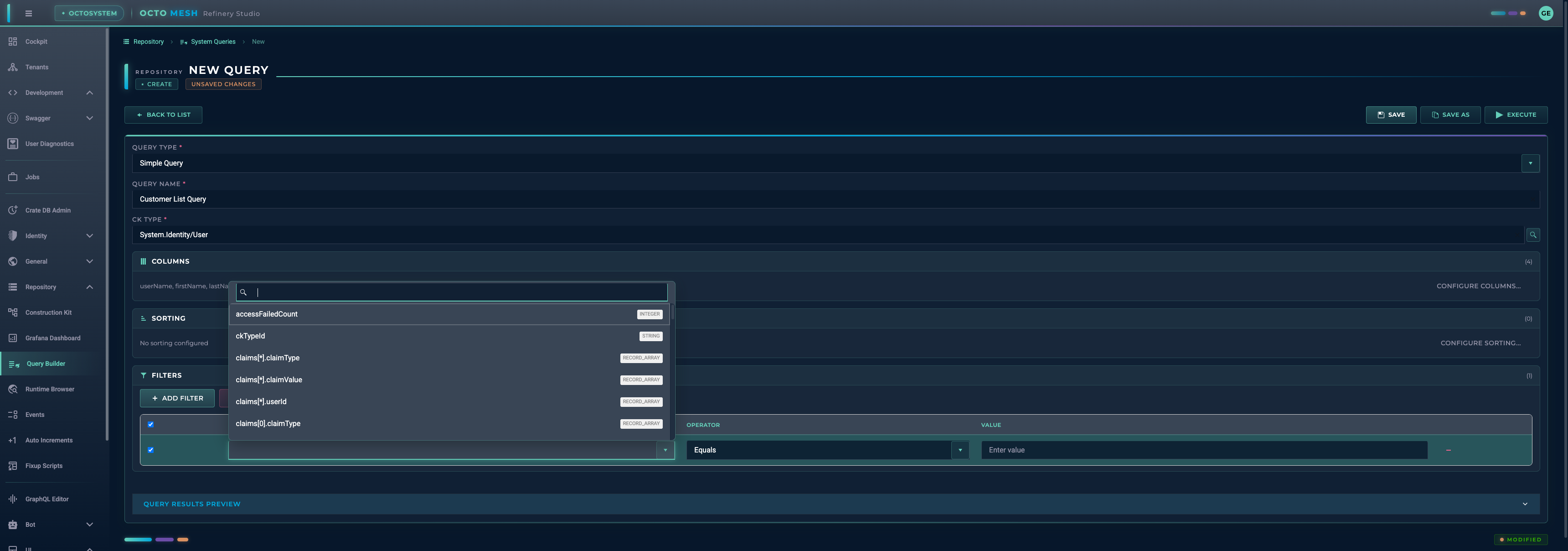
The attribute dropdown shows all available attributes with their data types. The value input adapts based on the attribute type:
- Boolean attributes show a toggle
- String attributes show a text input
- Number attributes show a numeric input
- Date attributes show a date picker
Filter Operators
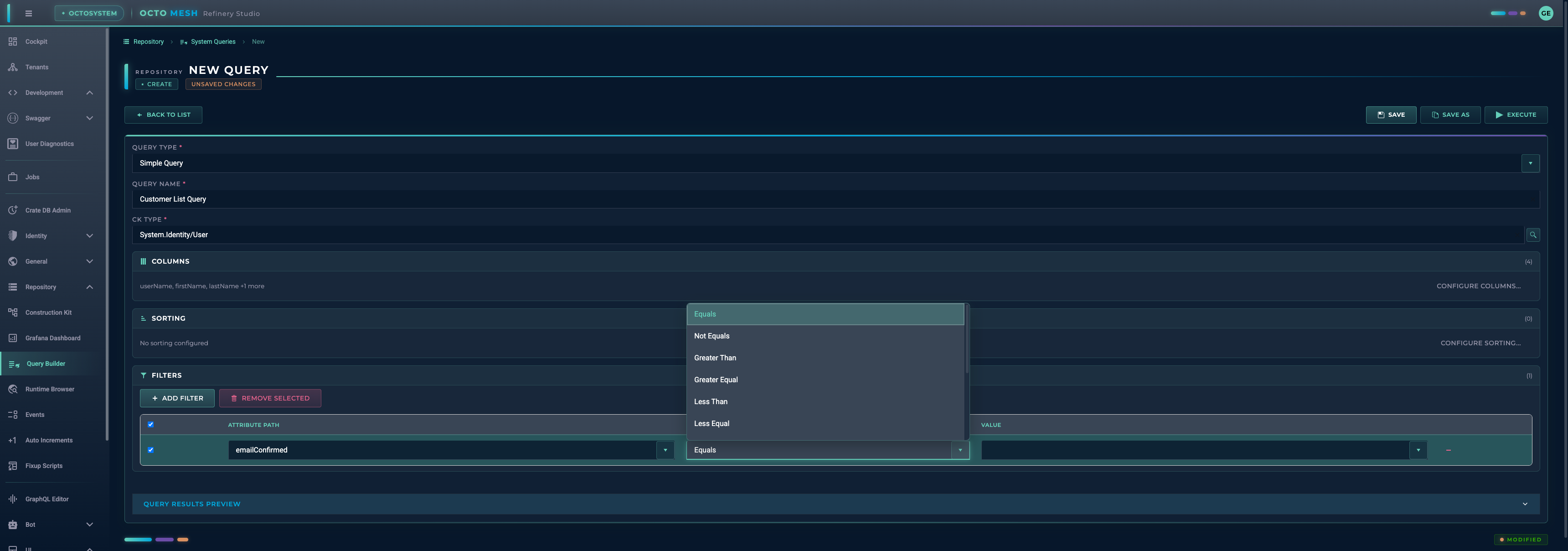
| Operator | Description |
|---|---|
| Equals | Exact match |
| Not Equals | Does not match |
| Greater Than | Value is greater than |
| Greater Equal | Value is greater than or equal to |
| Less Than | Value is less than |
| Less Equal | Value is less than or equal to |
| Like | Pattern match (use % as wildcard) |
| In | Value is in a list |
| Not In | Value is not in a list |
| Any Equals | Any array element matches |
| Any Like | Any array element matches pattern |
| Match RegEx | Regular expression match |
Multiple Filters
You can add multiple filters. All filters are combined with AND logic (all conditions must be true).
Aggregation Queries
Aggregation queries calculate summary statistics instead of returning individual entities.
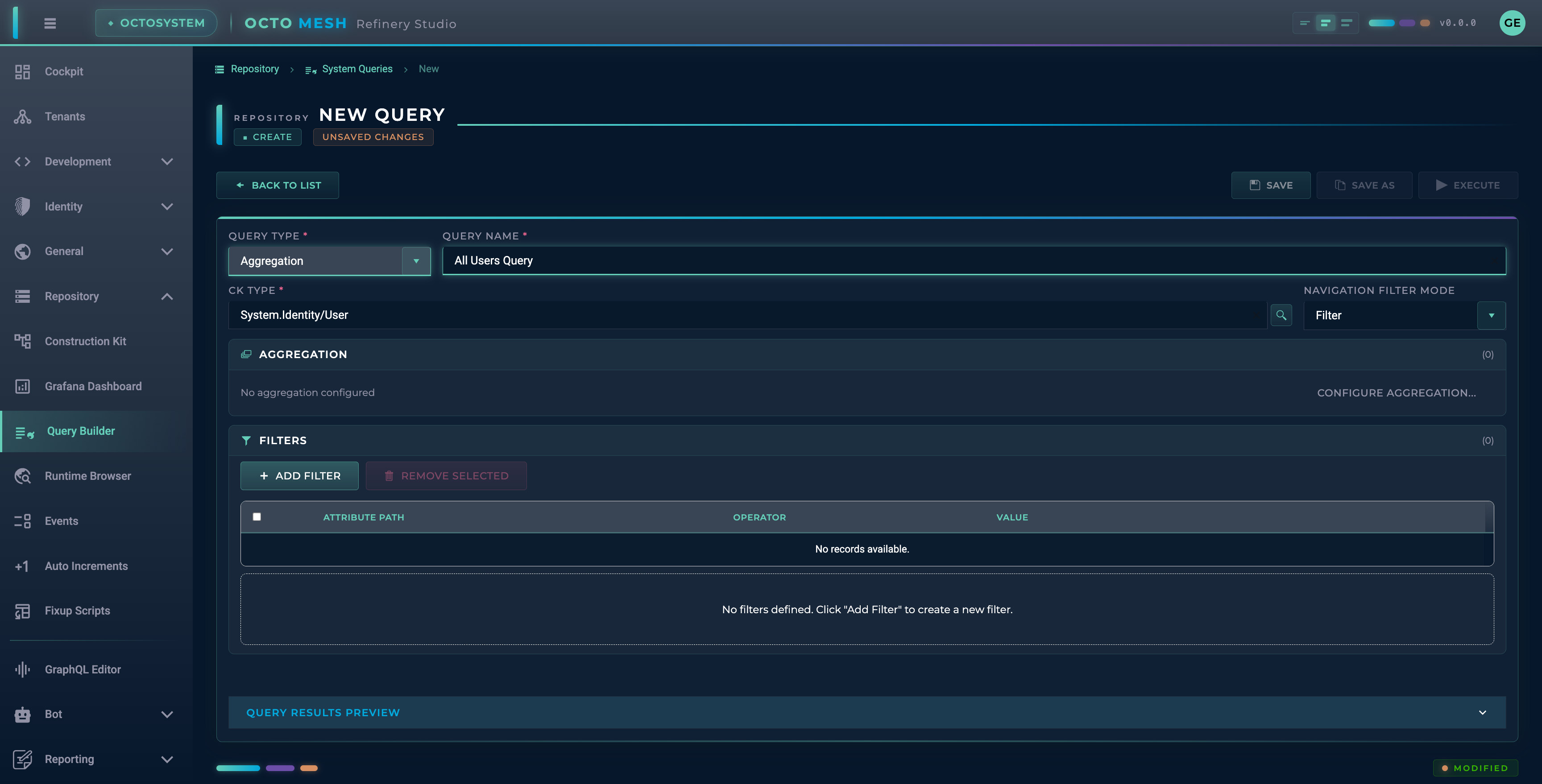
For Aggregation queries, the COLUMNS and SORTING sections are replaced with an AGGREGATION section.
Configuring Aggregations
Click ADD AGGREGATION to open the aggregation dialog.
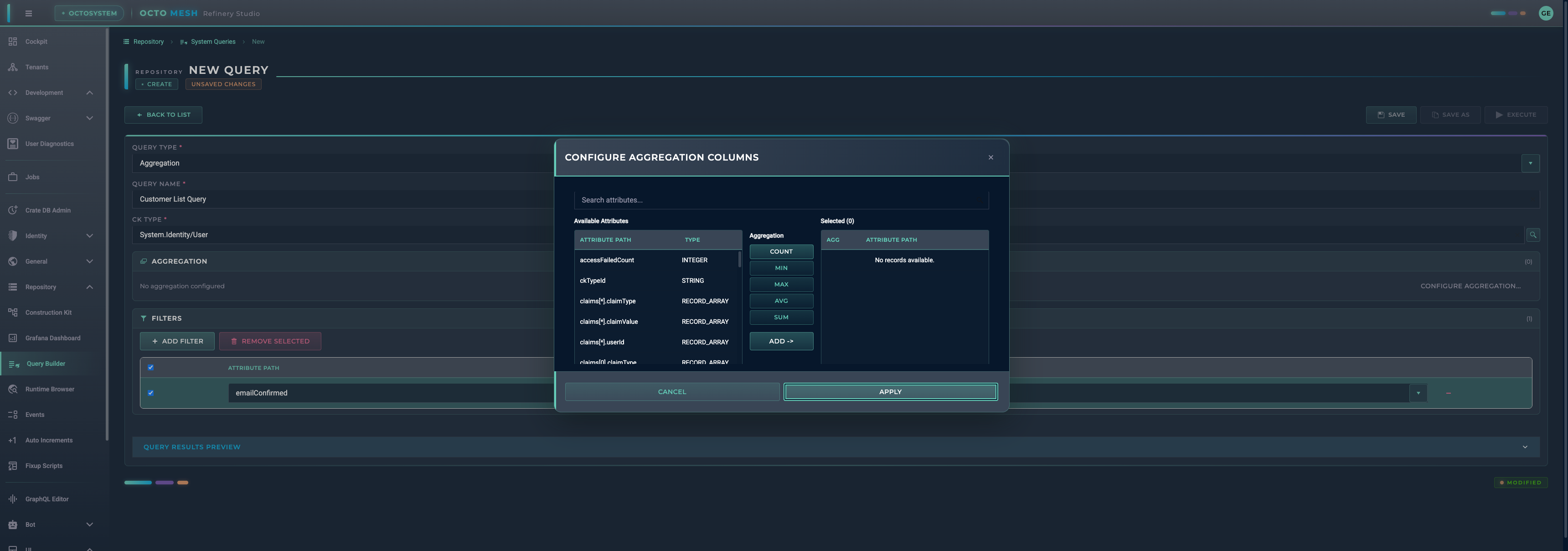
Configure each aggregation:
| Field | Description |
|---|---|
| Function | The aggregation function (COUNT, MIN, MAX, AVG, SUM) |
| Attribute | The attribute to aggregate (not needed for COUNT) |
| Name | Display name for the aggregation result |
Aggregation Functions
| Function | Description |
|---|---|
| COUNT | Count of matching entities |
| MIN | Minimum value |
| MAX | Maximum value |
| AVG | Average (mean) value |
| SUM | Total sum of values |
Grouped Aggregation Queries
Grouped Aggregation queries combine grouping with aggregation. Results are grouped by one attribute, and aggregations are calculated for each group.
Configuration includes:
- Group By: The attribute to group results by
- Aggregations: One or more aggregation functions
Example: Group users by department and count users per department.
Executing Queries
Click EXECUTE to run the query and see results. The results are displayed in a table format below the query configuration.
Saving Queries
Click SAVE to save the query configuration. Saved queries appear in the Query Builder list and can be:
- Reused for data exploration
- Referenced in MeshBoard widgets
- Shared across the tenant
Best Practices
- Name queries descriptively: Use clear names that indicate what the query returns
- Use filters effectively: Narrow down results to improve performance
- Select only needed columns: Include only attributes you need to reduce data transfer
- Test before saving: Execute the query to verify results before saving
- Use aggregations for summaries: Use aggregation queries instead of fetching all data and calculating client-side
- Consider performance: Complex queries on large datasets may take longer to execute
Use Cases
Data Exploration
- Browse entities of a specific type
- Search for entities matching criteria
- View entity attributes and relationships
Reporting
- Count entities by status
- Calculate averages and totals
- Group and summarize data
Dashboard Data Sources
- Create queries for MeshBoard widgets
- Build reusable data extractions
- Set up filtered views for specific use cases
Power BI Integration
- Use saved queries as data sources for Power BI reports and dashboards
- Leverage aggregation queries for pre-calculated summaries in Power BI
Grafana Integration
- Connect saved queries to Grafana dashboards for real-time monitoring
- Use aggregation queries for time-series and metric visualizations