Configurations
Configurations in OctoMesh Refinery Studio allow you to manage system settings for various OctoMesh services. These configurations control the behavior of core services, external integrations, and tenant-specific settings.
Changing configurations can have a significant impact on your system. Make sure you understand the implications before modifying any configuration.
Accessing Configurations
Navigate to General > Configuration to access the configuration management interface.
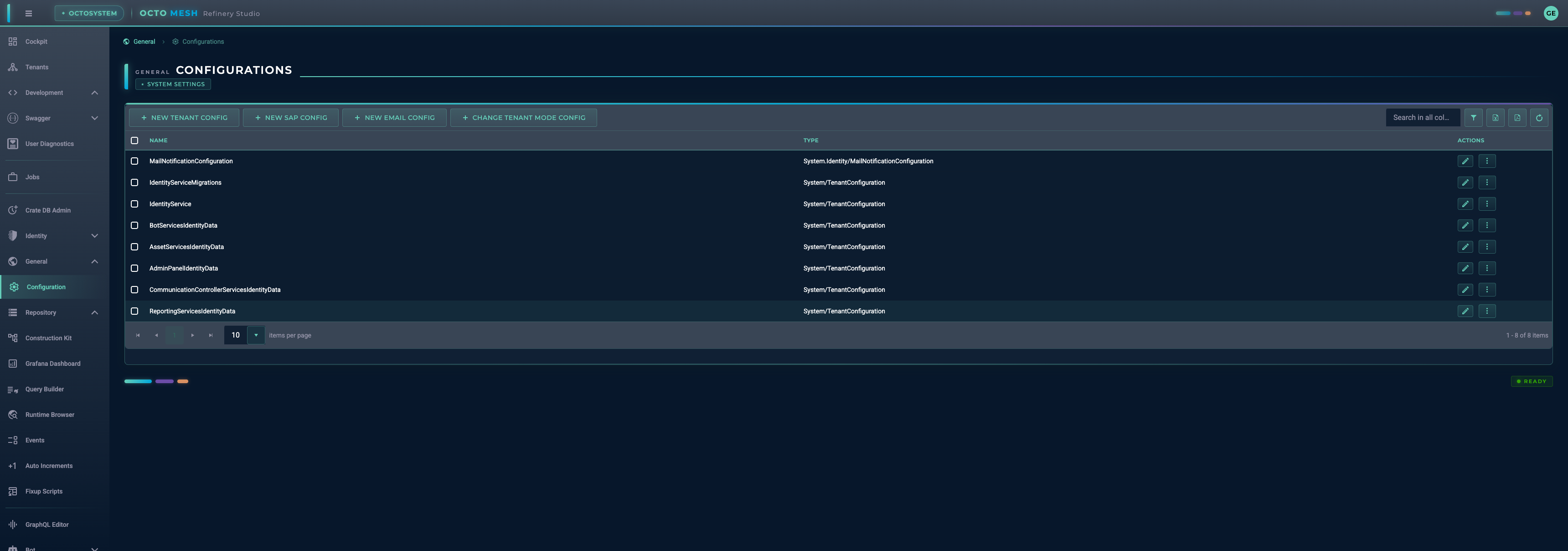
The list shows all existing configurations with:
- Name: Configuration identifier
- Type: The Construction Kit type of the configuration
- Actions: Edit or delete the configuration
Configuration Toolbar
| Button | Description |
|---|---|
| NEW TENANT CONFIG | Create a new Tenant Configuration |
| NEW SAP CONFIG | Create a new SAP Configuration |
| NEW EMAIL CONFIG | Create a new E-Mail Sender Configuration |
| CHANGE TENANT MODE CONFIG | Create or modify the Tenant Mode Configuration |
| Search | Search configurations by name or type |
| Export to Excel | Export the configuration list to Excel |
| Export to PDF | Export the configuration list to PDF |
| Refresh Data | Reload the configuration list |
Configuration Types
Tenant Configuration
Tenant configurations store version numbers and settings used by OctoMesh core services. These are primarily used internally to track initial data versions and migrations.
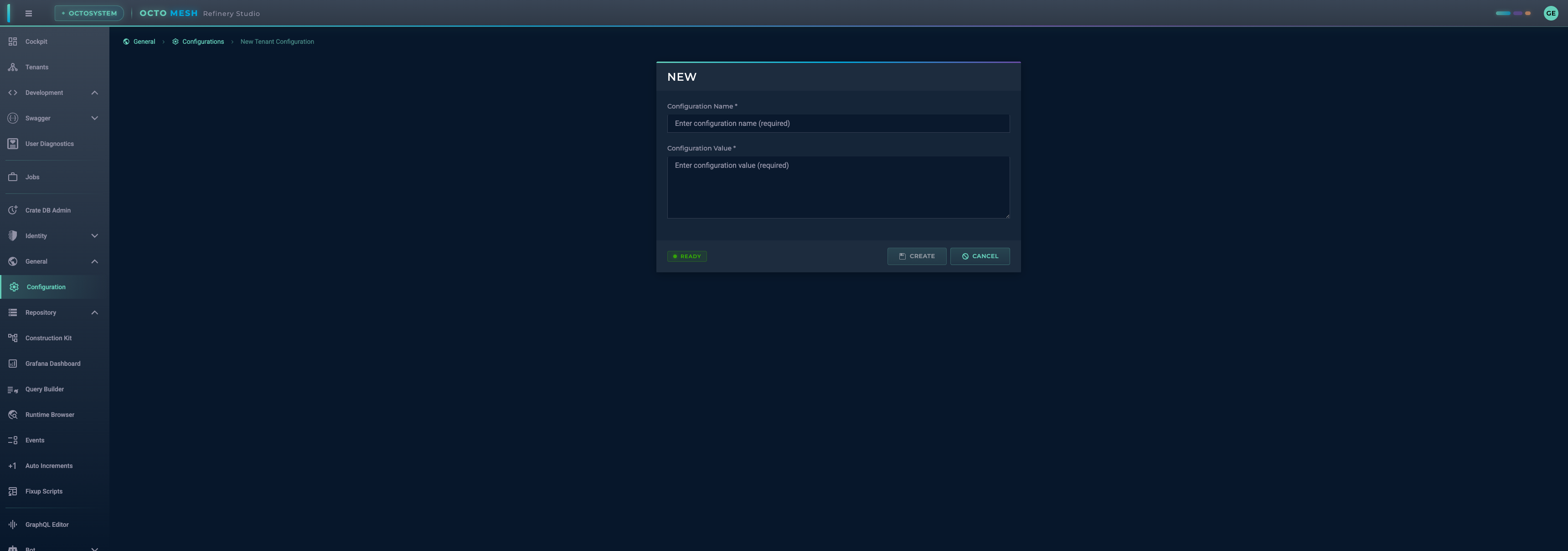
Creating a Tenant Configuration
- Click NEW TENANT CONFIG
- Enter a Configuration Name (identifier for the service)
- Enter the Configuration Value (JSON format)
- Click CREATE
Fields
| Field | Required | Description |
|---|---|---|
| Configuration Name | Yes | Unique identifier for the configuration |
| Configuration Value | Yes | JSON string containing configuration values |
Editing a Tenant Configuration
Click the Edit button on any Tenant Configuration to modify it.
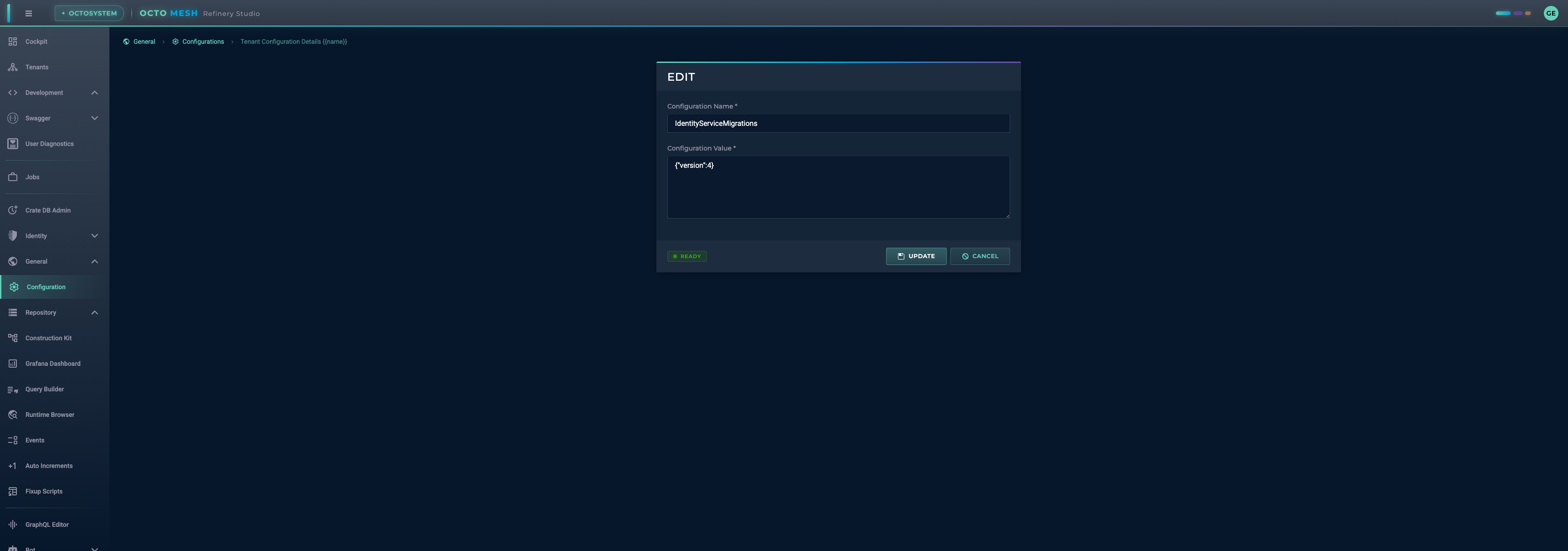
The edit form shows:
- The configuration name (can be modified)
- The configuration value as JSON (e.g.,
{"version":4})
Tenant Mode Configuration
The Tenant Mode Configuration controls the operational mode and maintenance state of the tenant.
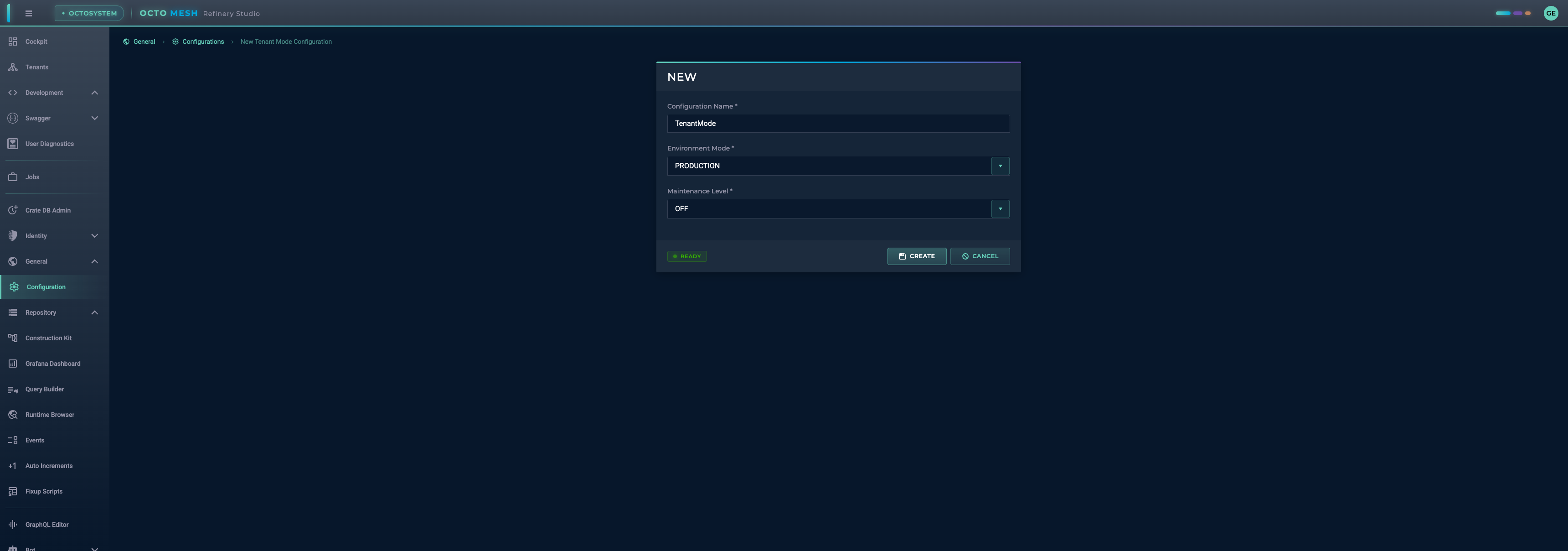
Creating/Changing Tenant Mode
- Click CHANGE TENANT MODE CONFIG
- The Configuration Name is fixed as
TenantMode - Select the Environment Mode
- Select the Maintenance Level
- Click CREATE
Environment Modes
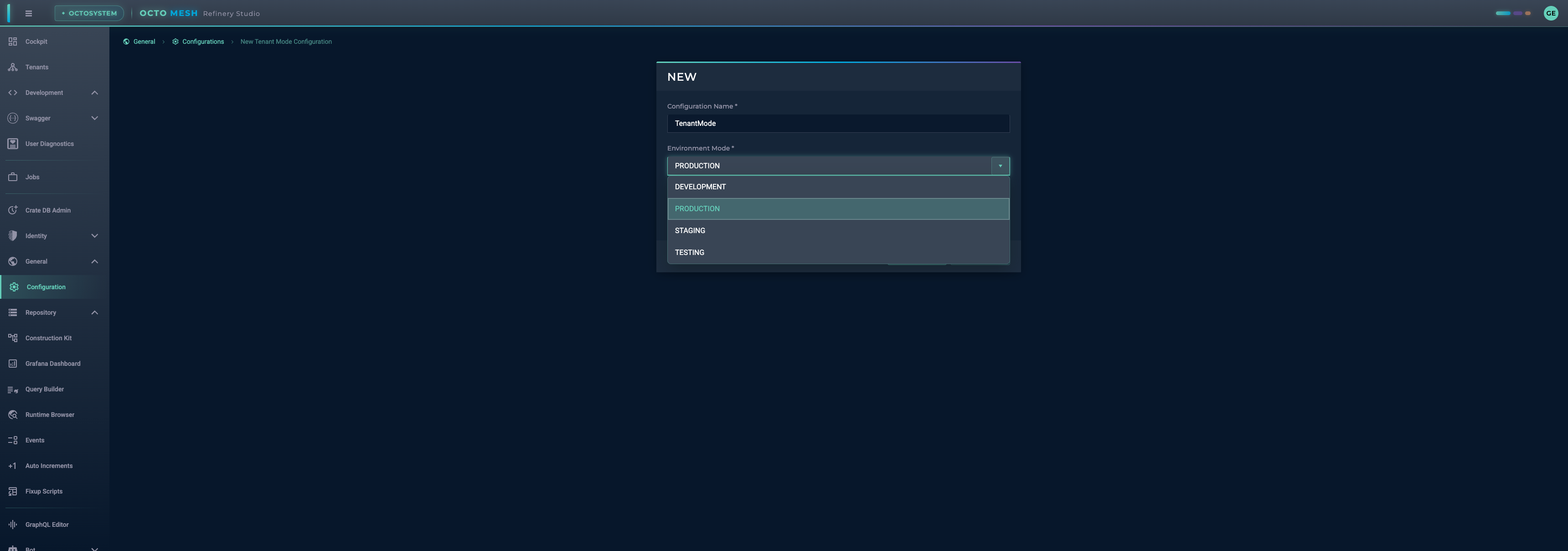
| Mode | Description |
|---|---|
| DEVELOPMENT | Development environment with debug features enabled |
| PRODUCTION | Production environment with optimized settings |
| STAGING | Staging environment for pre-production testing |
| TESTING | Testing environment for automated tests |
Maintenance Levels
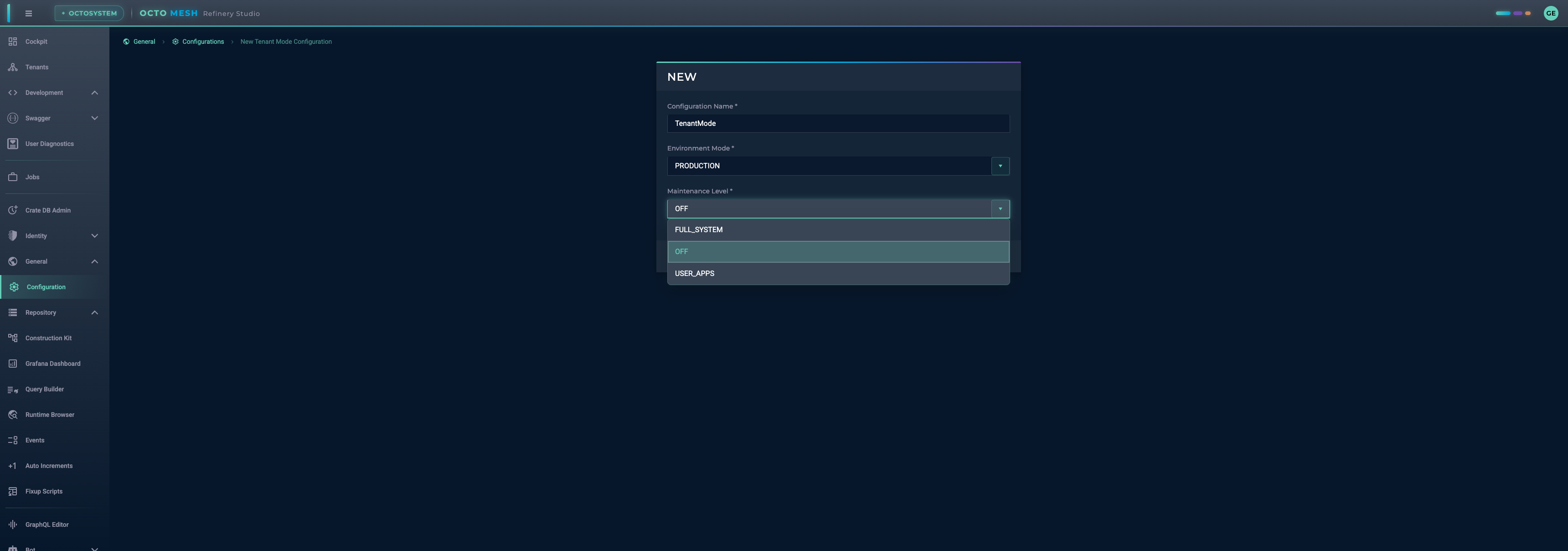
| Level | Description |
|---|---|
| OFF | Normal operation, no maintenance mode |
| USER_APPS | User applications are in maintenance mode |
| FULL_SYSTEM | Full system maintenance mode |
E-Mail Sender Configuration
E-Mail Sender Configuration defines SMTP server settings for sending emails through pipelines.
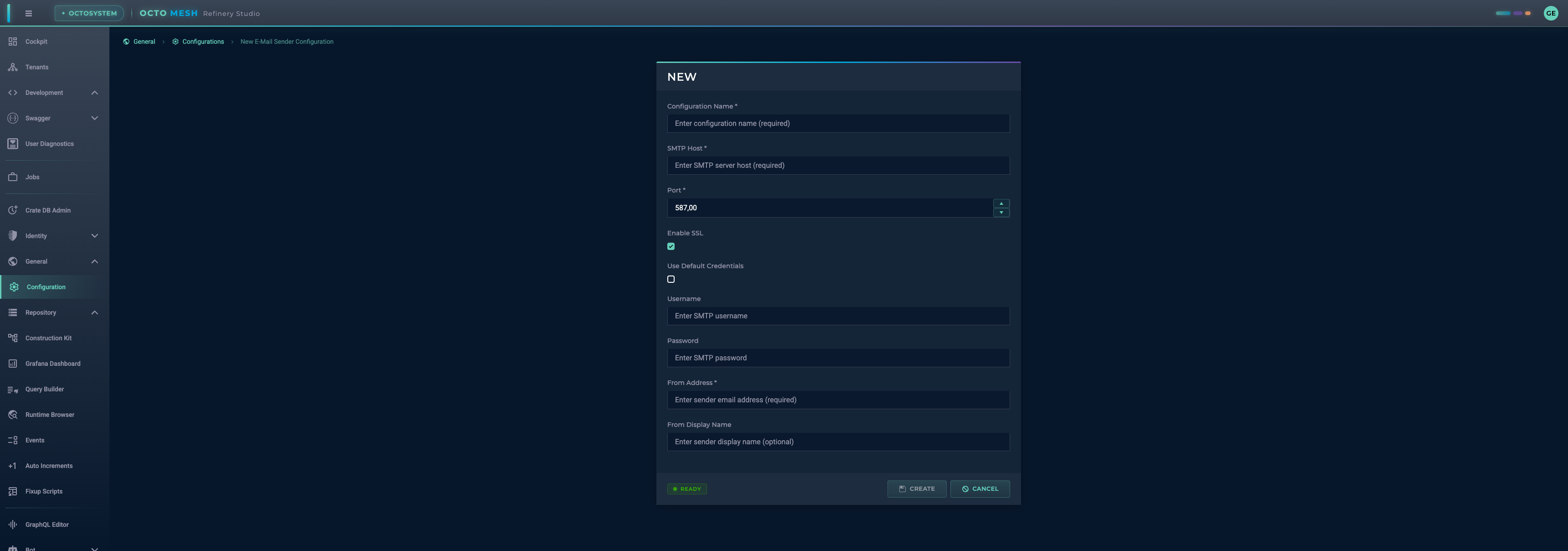
Creating an E-Mail Configuration
- Click NEW EMAIL CONFIG
- Fill in the required fields
- Click CREATE
Fields
| Field | Required | Description |
|---|---|---|
| Configuration Name | Yes | Identifier used to reference this configuration in pipelines |
| SMTP Host | Yes | SMTP server hostname (e.g., smtp.example.com) |
| Port | Yes | SMTP server port (default: 587) |
| Enable SSL | No | Enable SSL/TLS encryption (default: enabled) |
| Use Default Credentials | No | Use system default credentials instead of username/password |
| Username | No | SMTP authentication username |
| Password | No | SMTP authentication password |
| From Address | Yes | Sender email address |
| From Display Name | No | Sender display name |
Common SMTP Ports
| Port | Usage |
|---|---|
| 25 | Standard SMTP (often blocked) |
| 465 | SMTP over SSL |
| 587 | SMTP with STARTTLS (recommended) |
SAP Configuration
SAP Configuration defines connection settings for SAP systems, used by pipeline nodes that require SAP connectivity.
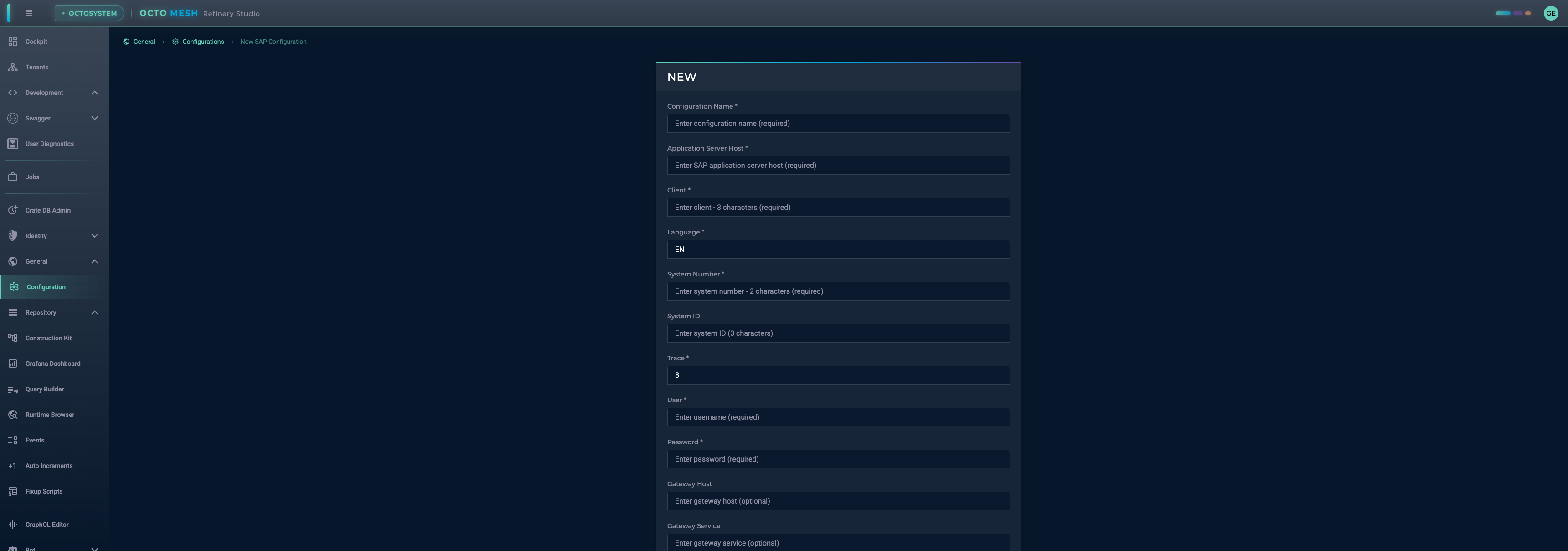
Creating a SAP Configuration
- Click NEW SAP CONFIG
- Fill in the required fields
- Optionally configure RFC Server settings
- Click CREATE
Connection Fields
| Field | Required | Description |
|---|---|---|
| Configuration Name | Yes | Identifier used to reference this configuration in pipelines |
| Application Server Host | Yes | SAP application server hostname |
| Client | Yes | SAP client number (3 characters) |
| Language | Yes | Connection language code (default: EN) |
| System Number | Yes | SAP system/instance number (2 characters) |
| System ID | No | SAP system ID (3 characters) |
| Trace | Yes | Trace level for debugging (default: 8) |
| User | Yes | SAP username |
| Password | Yes | SAP password |
RFC Server Fields (Optional)
Configure these fields to use the SAP configuration as an RFC server:
| Field | Required | Description |
|---|---|---|
| Gateway Host | No | SAP gateway server hostname |
| Gateway Service | No | SAP gateway service name |
| Program ID | No | RFC program ID |
| Registration Count | No | Number of registrations |
Best Practices
- Use descriptive names: Choose configuration names that clearly identify their purpose
- Document your configurations: Keep track of what each configuration is used for
- Test in non-production first: Test configuration changes in development or staging before applying to production
- Backup before changes: Export configurations before making significant changes
- Use appropriate environment modes: Set the correct environment mode for your deployment
- Secure sensitive data: Protect configurations containing passwords and credentials
Common Configuration Types
| Type | Usage |
|---|---|
System/TenantConfiguration | Core service version tracking and migrations |
System.Identity/MailNotificationConfiguration | Identity service email notification settings |
System.Communication/EMailSenderConfiguration | SMTP settings for pipeline email sending |
System.Communication/SapConfiguration | SAP system connection settings |
System/TenantModeConfiguration | Tenant operational mode settings |